Full-Screen Website Navigation with Splitscreen Animation (Template)
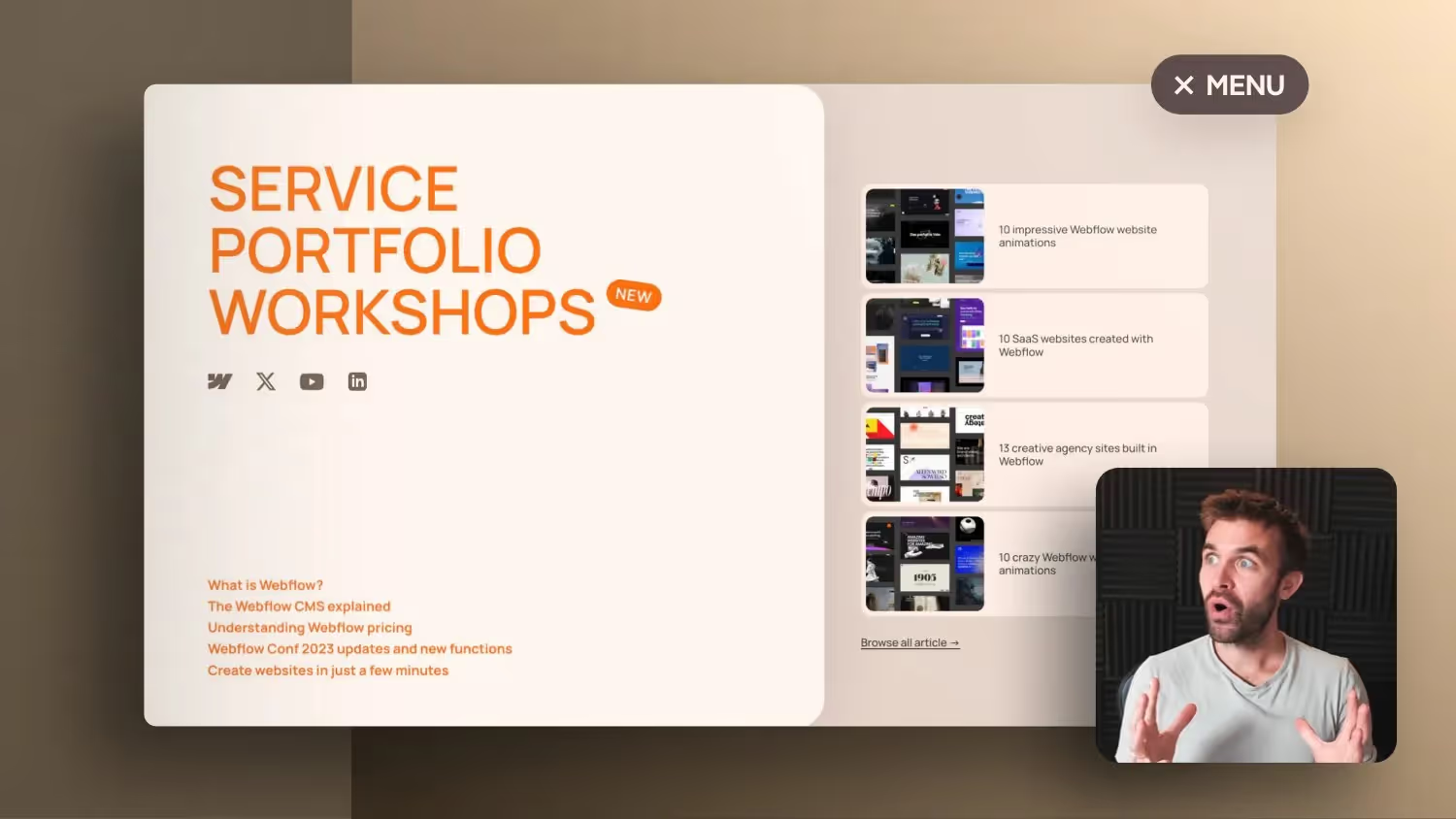

In this Webflow tutorial, Jonas Arleth shows how to create split-screen, full-screen navigation with animation. It also provides a free cloneable version. The navigation can be displayed on desktop as an overlay or on tablet and mobile as a full screen. Jonas also explains how you can divide navigation into components to make them easier to edit. He shows various animation effects, such as scaling and shifting, and explains how to create stagger effects for step-by-step animation.
Create a split-screen full-screen navigation in Webflow
Welcome to a new Webflow tutorial! My name is Jonas Arleth, and today I'm going to show you how to create a split-screen full-screen navigation with animation. I used to use this navigation on my Webflow online course page and now I'm making it available to you for free. You can simply copy them to your Webflow dashboard and use them for your projects. Let's get started!
initiation
In this tutorial, I'll take you step-by-step through the process of creating this navigation in Webflow. We'll also look at some interesting animated tricks that you might not know yet. If you want to learn how to build such websites from scratch, I recommend my Webflow online course, in which I explain everything from basics to advanced techniques.
Split-screen navigation structure
Create the basic structure
First, we create the basic structure for our split-screen navigation. To do this, we create aDiv wrapper, which serves as a container for our content. Within this wrapper, we'll create two Divs for the left and right sides. We call this left and Right.
Styling and positioning
Now let's style ourDivs. The left side gets 60% of the width, while the right side gets 40%. Both sides are given a background color and a box shadow for a slight depth effect. This gives navigation an elegant and modern look.
Add content
We add primary navigation links to the left side, while the right side is used for secondary content such as blog teasers and article links. The navigation on the left side can be designed flexibly so that it contains either primary or secondary menu items.
Add animations
Create animations
To create animations, we use Webflow Interactions. In doing so, we add a “Navigation opens”, which animates the left side from the left and the right side from the right into the screen. This makes for a dynamic and appealing start when the page loads.
Add hover effects
To give links in the navigation an interactive effect, let's add a Scale on Hover-Added effect. This ensures that the links are slightly larger when hovering, which gives the user visual feedback and increases usability.
Conclusion and fine-tuning
Optimizing for mobile devices
To ensure that navigation also looks good on mobile devices, we use media queries to adjust the display accordingly. On smaller screens, the two sides are displayed one above the other instead of side by side, and the box shadows are removed for a clearer and easier view.
Integration and testing
Finally, we integrate the navigation into our Webflow page and test it on various devices and screen sizes to make sure everything works as intended. In doing so, we check whether the animations run smoothly and that the navigation remains user-friendly.
conclusion
With these instructions, you have now created a modern, interactive split-screen full-screen navigation in Webflow. This navigation is not only visually appealing, but also functional and adaptable in many ways. If you want to dive deeper into webflow and web design, I recommend taking my comprehensive online course. Have fun trying out and designing your own Webflow projects!

-blog.jpg)