How to Use Hover Effects Correctly on Tablets & Smartphones
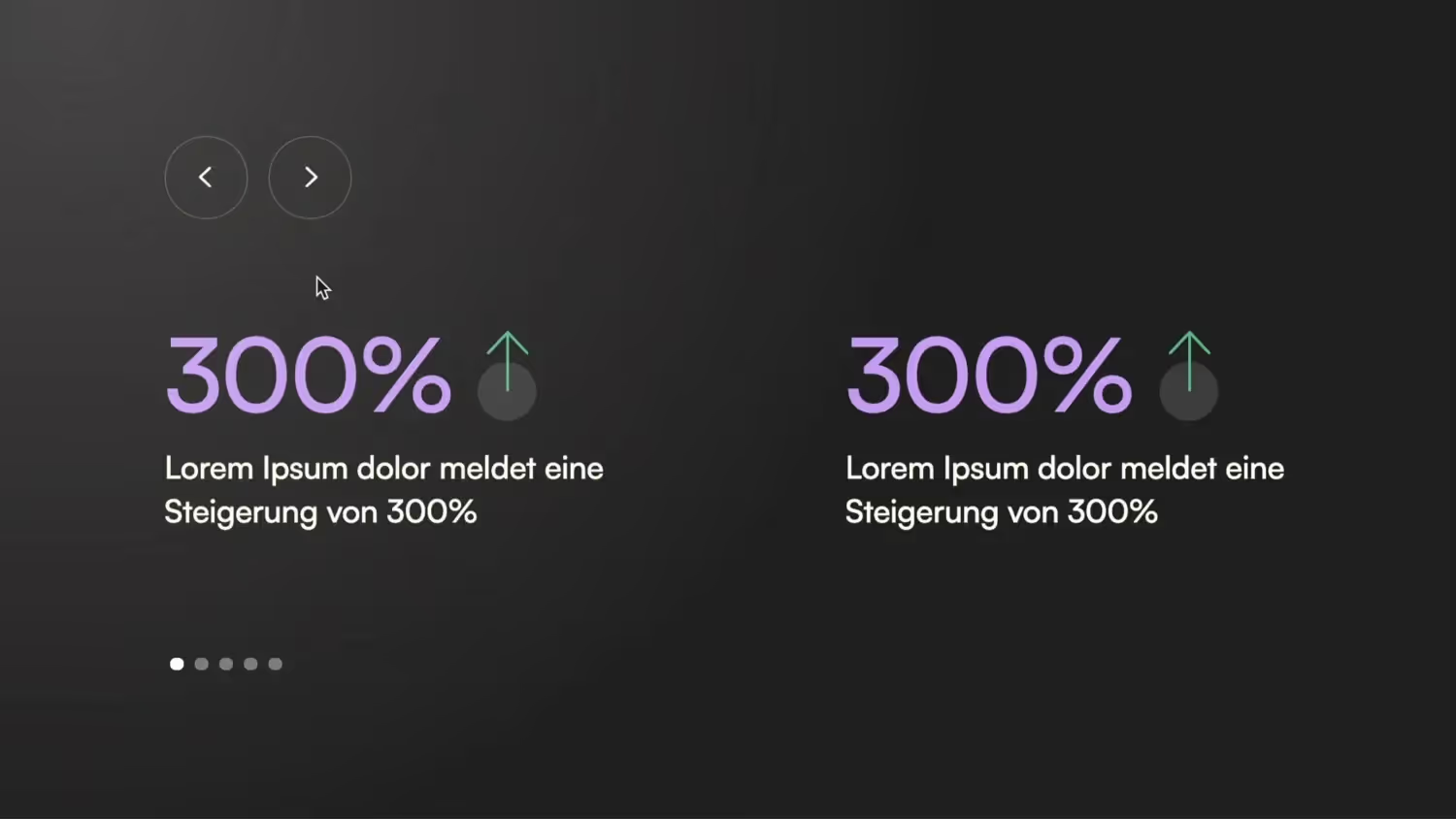

I guess most people set up hover effects in Webflow correctly for desktop devices, but then forget to deactivate them again on touch devices such as tablets and smartphones. I'll show you why this is a problem in this video.
The hover effect is no longer relied on smartphones, for example. This is often not noticeable with many buttons, as they link to another page and are therefore no longer visible. But especially with clickable elements such as a slideshow button, the hover effect won't disappear again.
What should be used instead is the “pressed” state in Webflow. In other words, an effect that is active as long as a finger presses a button. As soon as the finger leaves this element again, the normal status is also restored. This allows you to make the button feel more like a real button.


-blog.jpg)