Create Micro Loop Animations for Websites in Record Time with CSS
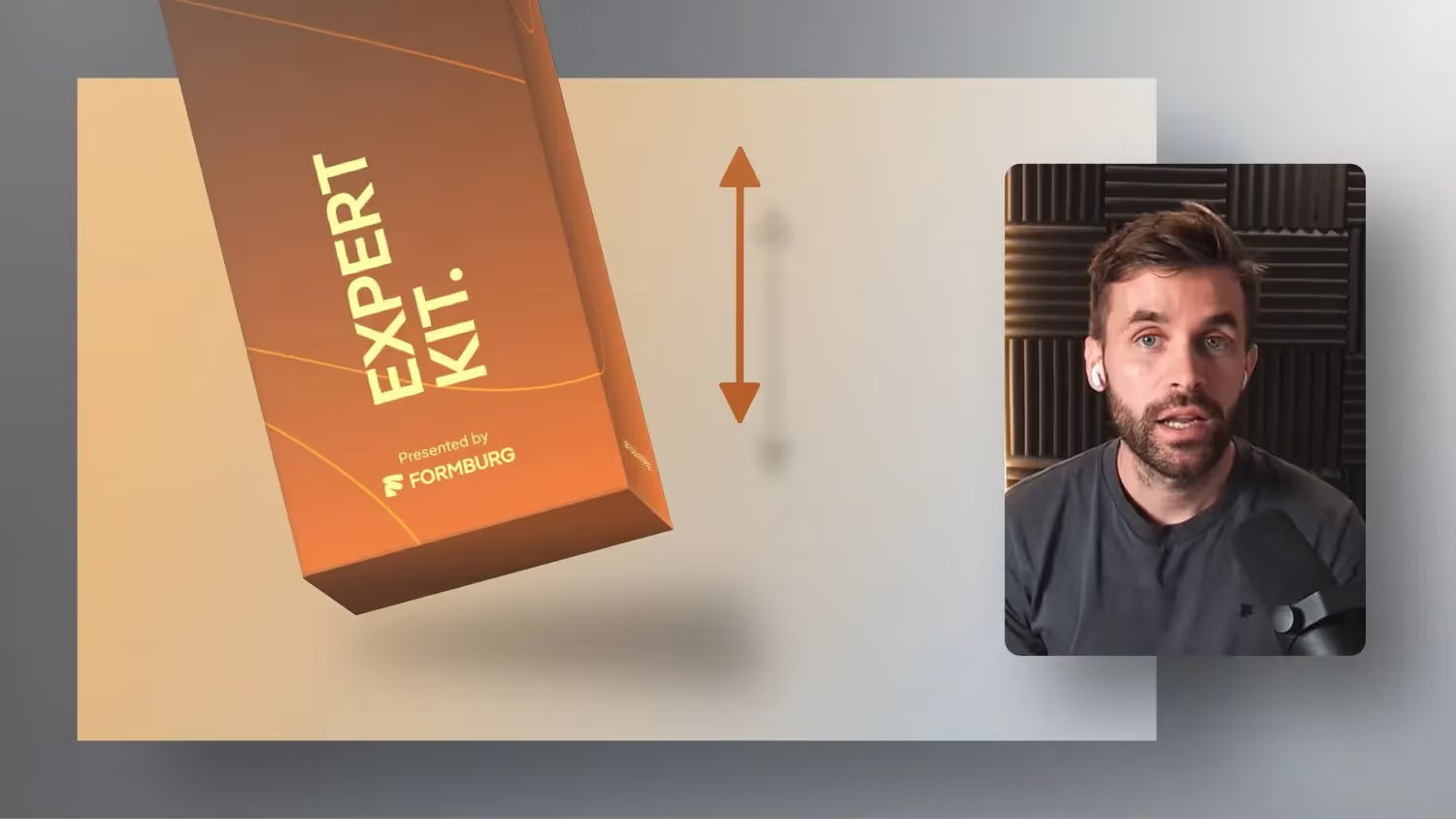

In this tutorial, I'll show you how to create loop bounce effects in Webflow—first with Webflow interactions and then more efficiently with CSS animations. You'll also learn how AI tools like ChatGPT can help you generate the code you need.
Description template for an AI to create the animation:
Write me a css code with style tags for an animation. The element with the data-bounce-element="animate-up-down” attribute should animate as follows:Move y=0, rotate z=0
towardmove y=1.5rem, rotate z=5deg
And back onMove y=0, rotate z=0
The whole thing should take place in a loop in 5 seconds and with an ease-in-out effect.
Get your Webflow projects moving: bounce effects with CSS and AI
initiation
In the world of web design, animations are a powerful tool for making websites more lively and appealing. Bounce effects can attract attention and highlight elements. In this tutorial, I'll show you how to create such effects in Webflow and make them even more efficient with CSS.
Create bounce effects with Webflow interactions
Webflow provides an intuitive way to create animations without code:
Prepare an item: Create a div element that contains your animated object.
Add interaction: Go to Interactions and choose “Scroll Into View” as a trigger.
Define animation:
- Start state: Set the starting position of your element (e.g. Y position at 0rem, rotation at 0°).
- Add motion: Add a movement of 1.5rem in the Y-axis and a rotation of 5°.
- Activate loop: Loop the animation to create the bounce effect.
preview: Test the animation and adjust it as needed.
This method is ideal for designers who want to work without additional code.
Performance optimization with CSS animations
CSS animations can be used for better performance:
- Generate CSS code: Use AI tools like ChatGPT to write the CSS code you need. Just describe exactly what you've created in your Webflow interaction.
- Embed code: Paste the generated code into an embed element in Webflow.
- Apply animation: Use custom classes or attributes to apply animation to your elements
- Make adjustments: Adjust the movement and rotation values to achieve the desired effect.
CSS animations are less resource intensive and provide smoother transitions.
Use AI tools to help
Using AI can significantly speed up the workflow:
- efficiency: Save time by having complex CSS animations generated automatically.
- flexibility: Experiment with different animations without writing code manually.
- learning: Understand the generated code to expand your own capabilities.
conclusion
By combining webflow interactions, CSS optimizations, and AI support, you can create impressive bounce effects that are both visually appealing and performant. Try it out and take your web design projects to the next level!
-blog.jpg)