SEO in Webflow: 11 Tips for Better Search Engine Rankings

Search engine optimization is the be-all and end-all of any website success. Regardless of whether you offer an online shop, a blog or a digital service. You can only be successful if people find their way to your website. And only then will your website have a real reason to exist.
Of course, you can also make your Webflow website SEO-ready. The following tips can all be implemented immediately and are easy to understand.
SEO basics for Webflow websites — you need to know that
The headline structure
Google and Co. scan your website not only with regard to the content, but also with a view to the structure. The more logical your website is, the better.
Headlines have a particularly structuring character. So your H1, H2, H3,... headlines.

Your H1 headline plays the most important role! From it, the search engine derives the content of the crawled page. So make sure to briefly and concisely describe the content of the website in your H1 headline.
The other headings then go into detail. The content of the H2 heading fits into the H1 heading and explains an idea in more detail. The H3 heading is in turn based on the content of the H2 heading. H4 builds on H3. And so on.
Save headline sizes in your own CSS classes
In Webflow, make sure that the headlines are not only visually distinguishable from one another. Also give your headlines the appropriate selector names. For me, an H1 is often title1, an H2 has the class title2, etc. This has the advantage that, for example, you can still give an H3 the styles of an H1 in the middle of the page by simply entering yours in the corresponding class and thus overwriting the font sizes.
Meta title and meta description
Anyone who remembers Google's hit list knows that there is a short preview of every result displayed. This preview usually consists of a headline - the meta title - and a short description - the meta description.
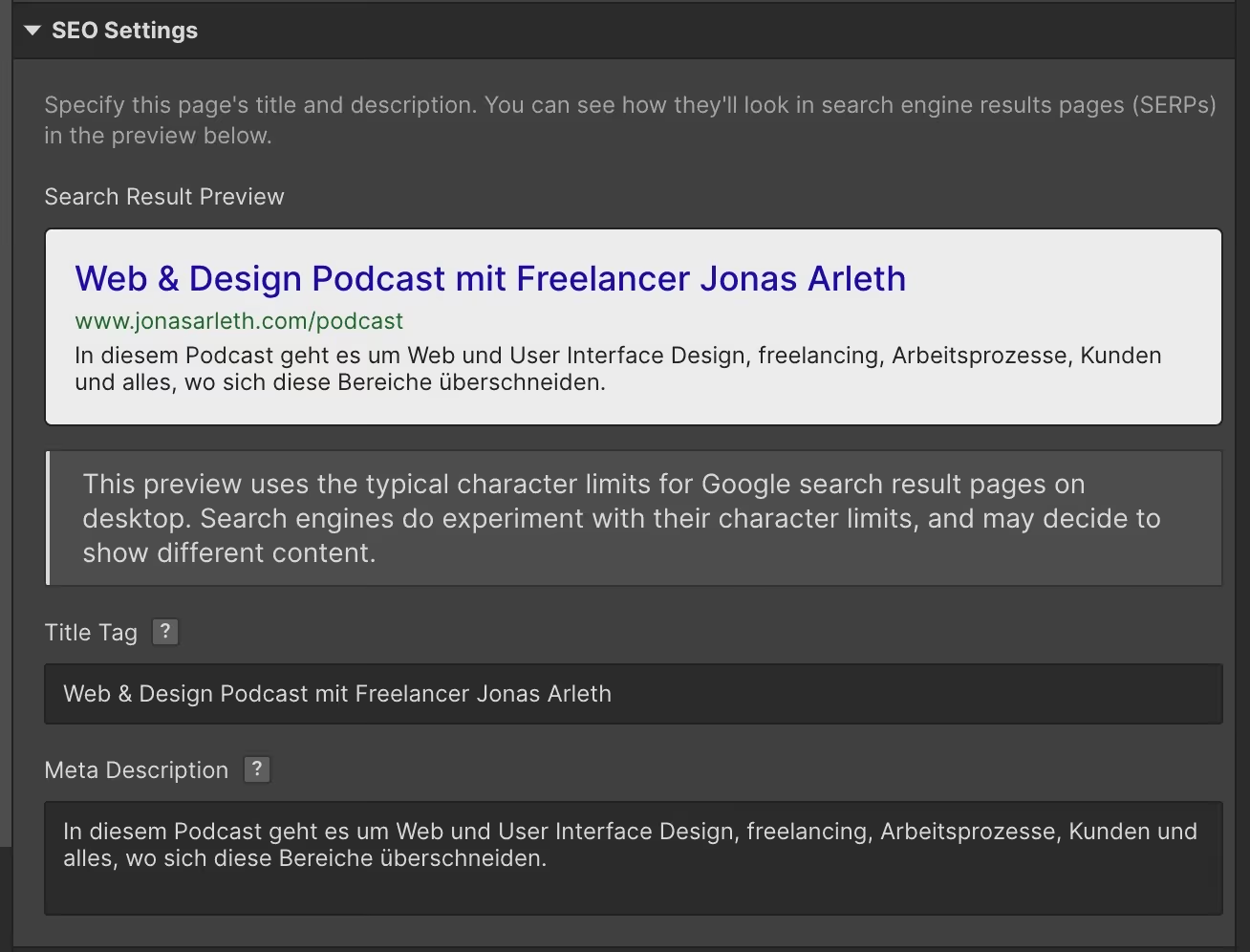
You can enter these metas yourself for your individual pages. In Webflow, this is done via Settings of the respective page.
Ideally, you repeat the same keyword or keyword phrase in the meta title as in the H1 heading on the page.
You can also include relevant keywords in the meta description. But it is much more important that you pick up the search engine user and tell them in an appealing meta description what to expect on the corresponding page - and thus encourage them to click.
If you work with the Webflow CMS, you can use placeholders for the meta title and description, for which content is then pulled from the CMS accordingly. For example, if you have a title from a blog post, it doesn't necessarily have to be used as a meta title. You can also create an extra field in the CMS specifically for SEO descriptions and link it accordingly.
The navigation structure
The menus on your Webflow website guide the user through your online presence click by click. They are like a navigation system that specifically guides you. For this reason, many people no longer speak of a website menu but of website navigation.
Google and other search engines find it great when they come across clearly structured, well-arranged websites.
Your website visitors are also happy when they quickly find the pages they're looking for. Your imprint, for example. In short: With a well-thought-out and clear website structure, you make site visitors and search engines happy.
text links
Google is crazy about text links. But only if the content of the text is related to the text to which the text refers.
For example, let's say you include a call to action at the end of a landing page. It says “Contact me.” If you link these two words to your contact form, Google will do it again. The search engine understands that this link points to your contact form and is thus building the structure of your site piece by piece.
The result: If you set text links intelligently, Google will find all your sub-pages and present them in the search results according to their relevance to the user.
Webflow dashboard settings
The settings in the Webflow dashboard can be used to take some important steps for successful search engine optimization. About the rider hosting Do you get - at the very bottom of the page - to the Advanced Publishing Options. In any case, the functions here should Minify HTML, Minify CSS and Minify JS be activated.

These clicks improve your website's performance—meaning your website loads faster. This not only contributes to an improved user experience, but is also rewarded by Google and other search engines with a good ranking.
Now switch to the tab SEO and activate the function under Auto-generate site map. The sitemap tells Google about your page structure.
Google Search Console
Some websites are only crawled by Google after weeks or even months. This means that the website does not appear in search results beforehand.
However, you can speed up crawling. Through Google Search Console. It is a free tool that not only allows you to monitor the performance of your website. You can also use the tool to inform Google about your new website.
About the Google Search Consol site You can directly enter the address of your new website. Google will then provide you with various options so that you can verify the ownership of the website.
You prefer to use DNS verification, but you can also use the HTML tag. Just copy and go to the Webflow settings under the tab Custom Code insert into the head code.
Then return to Google Search Console and confirm the verification.
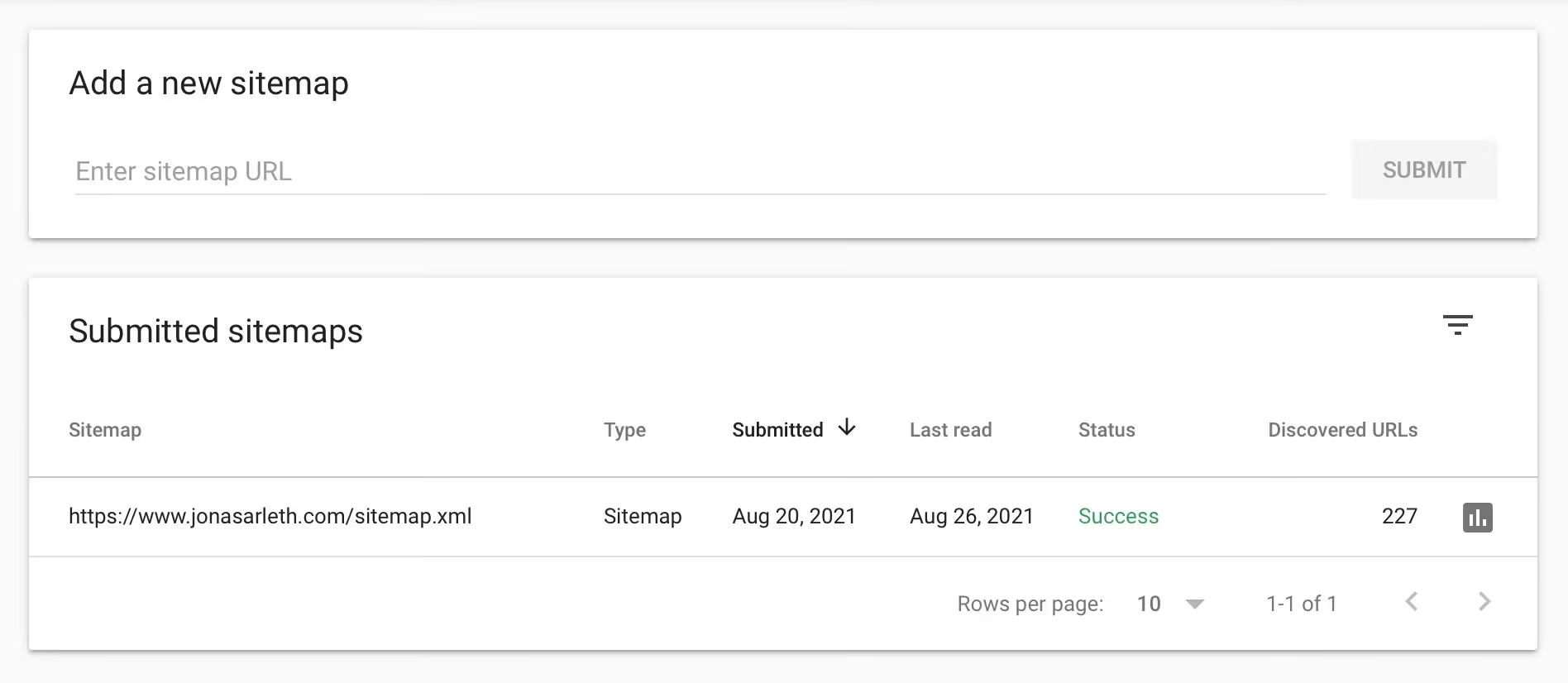
Now click in the menu on the left sitemaps. Since we have the function Auto-generate site map have activated in Webflow, we just have to put the website address in the field Add a new site map Enter 'sitemap.xml' after the slash. Just confirm and look forward to crawling soon.
The Webflow Audits Panel shows you what else is wrong on the page

Have you forgotten certain alt descriptions of images or messed up your headline structure? Don't be afraid. Webflow gives you a good clue before you publish the page. With the so-called audit tool, you can then jump directly to the corresponding problem and improve it.
Use external tools for fact-checking
I like to go to a customer website with the SEORCH Tool through. It shows you in detail exactly what you could possibly improve and what has already been well implemented.
Create 301 redirects
Maybe you're working on a relaunch for your customer and the website structure has changed a bit. With the 301 redirects in the Project settings under hosting Can you ensure that old URLs are redirected to new URLs. This prevents error pages and Google knows that, for example, a blog can be found earlier under /news and recently under /blog.
Learn more about 301 redirects and how to import them to Webflow, I have summarized it for you in a separate article.
Disable indexing your webflow.io subdomain
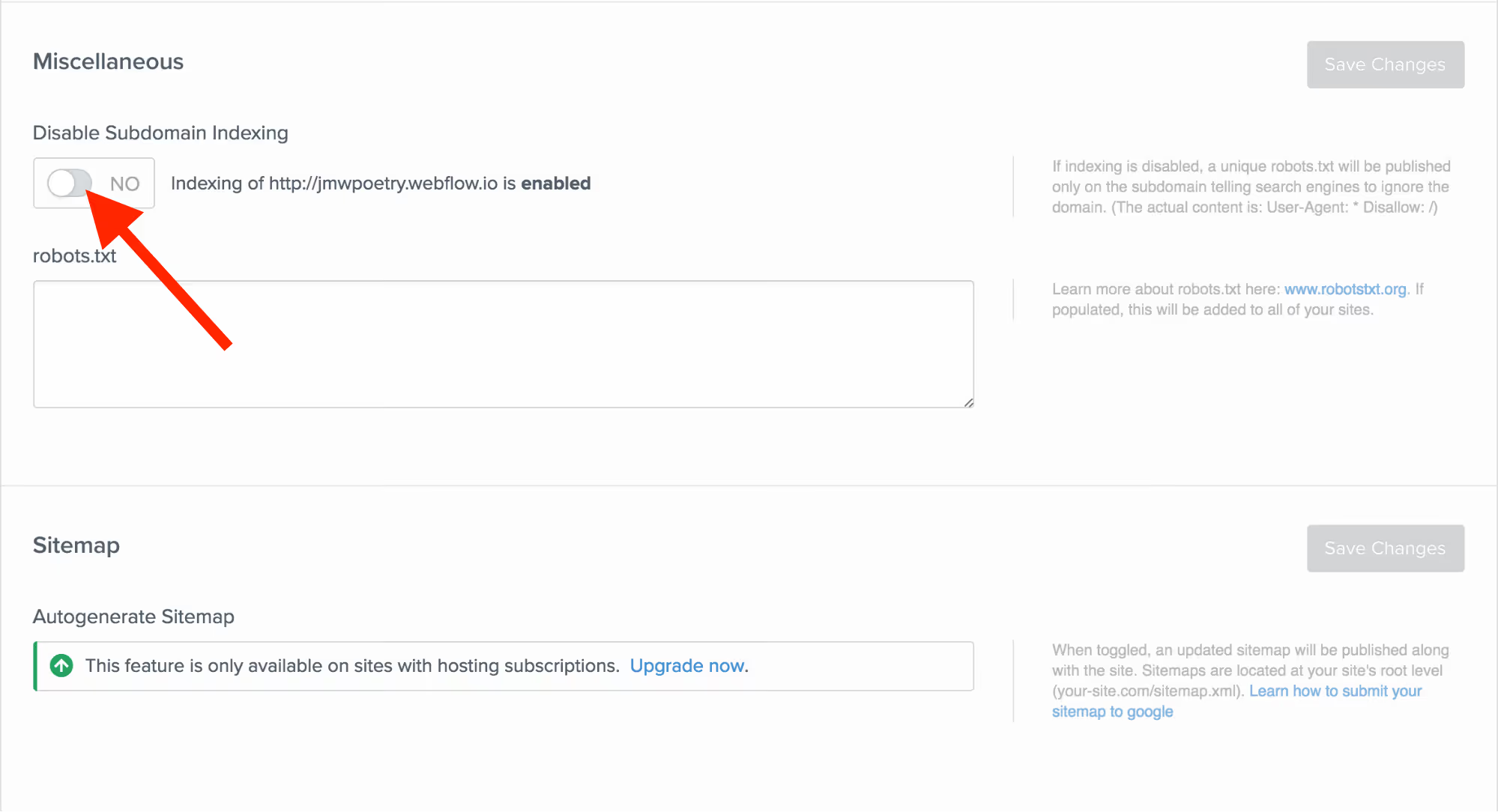
As soon as your site is live on your own domain, you will probably use the webflow.io domain for interim coordination with the customer without changes being publicly visible. However, as a result, you have two versions of your website online, so to speak. It is therefore essential to exclude this subdomain from search engines when the website is launched.
Navigate to the Project settings (Site settings) in the tab SEO and prevent browsing from your automatically created Webflow.io domain (Disable Webflow Subdomain Indexing).
Now your Webflow website is ready for Google and Co.
With these simple tricks, you can make your Webflow website fit for SEO.
If you want to dive further into the topic, feel free to check out my tutorials on the topic.
In my Webflow online course I'll go into more detail about Webflow and SEO. You'll also receive a checklist to help you launch your website.


%2520unno%25CC%2588tig-blog.avif)