MAST Framework Deep Dive in Webflow: From Setup to System


MAST isn’t just “another Webflow framework” – it’s a completely different approach to structuring layouts, components, and utility classes in Webflow.
In this episode we go deep: What sets MAST apart from Client-First? Why does Matthias now use MAST across all his client projects – and when does he deliberately skip components? You’ll get a clear picture of how MAST is designed: less is more, 12-column grid, component-based workflows, yet still enough freedom for custom sections.
We also talk about how MAST handles Webflow Components, Slots, Build Mode, Variables/Fluid Design, Phosphor Icons, and even ready-made solutions like Swiper Slider – including a practical take: what’s truly helpful, where does it get too complex for beginners, and how do you onboard clients properly without them “breaking” the site?
MAST Framework in Webflow: What Makes It Better Than Client-First
If you’ve been working with Webflow for a while, you know the problem: projects start clean – and end up in a class jungle a few months later. That’s exactly where the MAST Framework comes in. It combines familiar principles from classic frameworks (e.g. a grid system) with a Webflow workflow that’s built around structure, reusability, and components.
In this post I’ll show you how MAST is designed, where it truly shines, and when to use it pragmatically as “just a foundation.”
Client-First vs. MAST: The Biggest Difference
Client-First was the gateway for many into more structured Webflow work: readable names, clear rules, less chaos. MAST goes a step further and becomes more compact in many areas.
With Client-First you’ll often find very descriptive, long names so even non-developers immediately understand what’s happening. MAST reduces this more aggressively and uses short, technically precise naming. That’s often faster to read and build for developers – but can feel unfamiliar at first.
The key point: it’s not a “better/worse” question, but whether you want more compact utility logic and component-oriented thinking in your project.
Components: MAST Can Do Everything – But You Don’t Have to Use It All
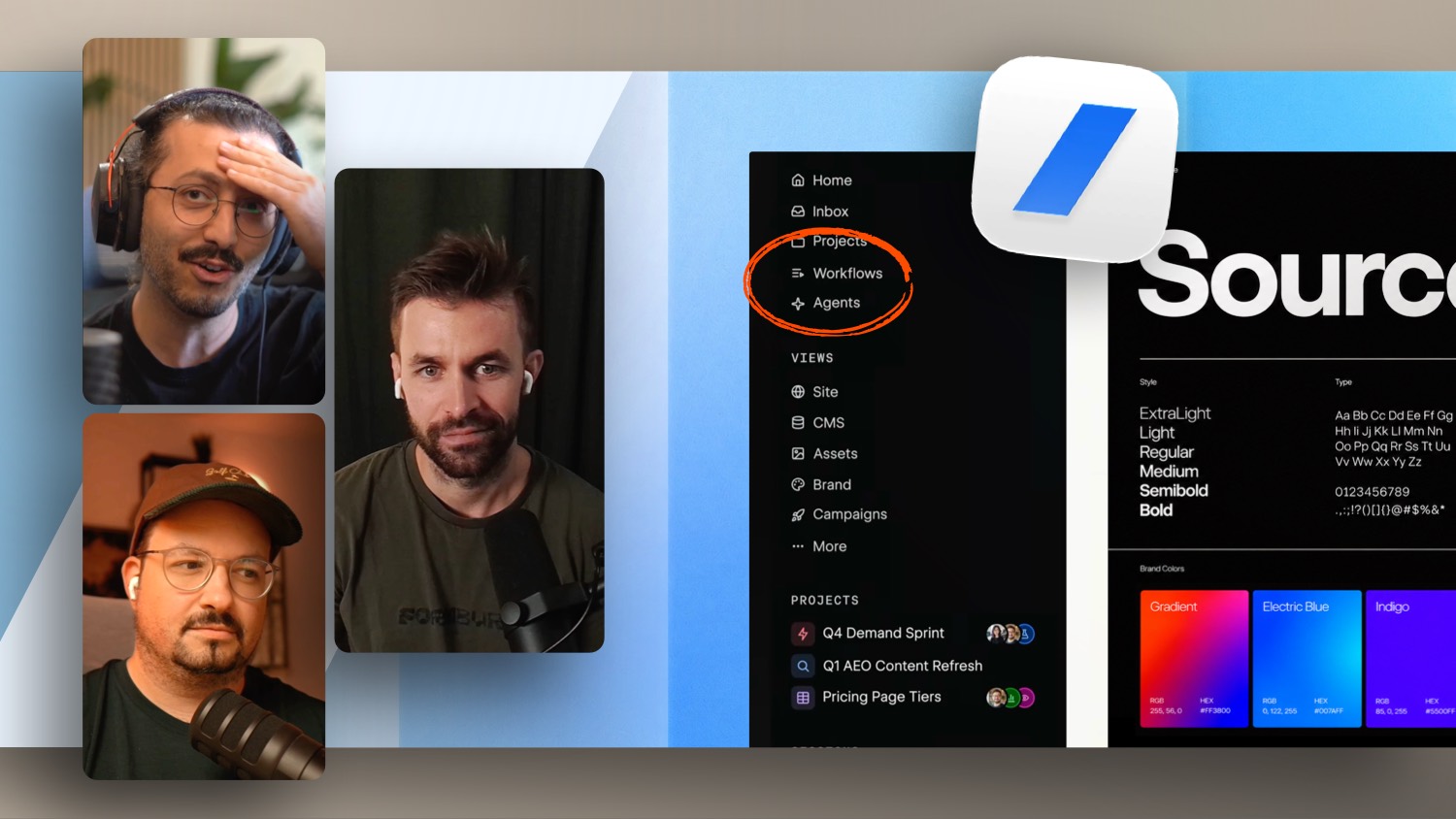
MAST comes with a strong focus on Webflow Components. Looking at the styleguide and layout examples, it almost seems like you’d assemble entire pages from components + slots alone.
In practice, the pragmatic approach is usually best:
- Recurring sections like navigation, footer, FAQ, benefits sections are perfect candidates for components.
- Highly individual areas (e.g. hero sections, complex background graphics, storytelling sections) are often faster to build “classically” in the Designer – but using MAST classes as a clean foundation.
The biggest advantage of components becomes clear when clients later need to expand content themselves – without accidentally breaking layouts.
Grid System: Why It Saves Classes on Larger Projects
Many people are put off by MAST’s grid system at first glance: row, col, breakpoint classes like col sm 12 – it can feel like “too much framework.”
But the payoff shows up long-term:
- On small sites with few pages, you can quickly create your own grid layout classes.
- On large projects (50–200 pages, multiple developers), that escalates fast: you’re constantly hunting for old classes and building things twice.
- With MAST you can build typical layouts (text/image, 3-column cards, 2-column, etc.) through a consistent system – without inventing new layout classes every time.
Once you understand how columns “stack” across breakpoints, you’ll build with it extremely reliably.
Variables and Fluid Design: A Setup That Feels Cohesive
MAST leans heavily on variables and uses fluid behavior in many places (e.g. padding, typography). This means: spacing and sizes adapt automatically based on viewport, rather than you having to manually adjust at every breakpoint.
Particularly useful for:
- Typography, because larger displays often need more readability
- Section padding, so layouts don’t look “bloated” on small screens
- Containers, so page margins scale cleanly
Once you’ve mapped this cleanly onto your Figma design, you get a system that feels very consistent.
Icons and Component Building Blocks
One extremely practical everyday detail is how MAST handles icons: instead of constantly searching for SVGs, importing, and styling them, certain setups let you swap icons by name (e.g. from a library like Phosphor).
On top of that come ready-made modern building blocks you’d otherwise cobble together with custom code:
- Slider based on Swiper
- Modals
- Accordions
- SEO-friendly elements like breadcrumbs (clean for accessibility and indexing)
You can use these building blocks, but you don’t have to. That’s exactly what makes the approach pleasant: framework as foundation, not as obligation.
Client Onboarding: Build Mode Yes – But With a Plan
Webflow is pushing further toward Build Mode so teams can edit content and pages without “designer-level” skills. In reality though, it’s important not to overwhelm clients.
A sensible approach is:
- Clients work in Build Mode
- they start from pre-built layout pages
- they delete/swap content rather than inventing new systems
Components provide safety, but slots and component properties can quickly become confusing if you don’t know what goes where. A clear template setup that actually guides clients is worth the investment.
Conclusion: MAST Pays Off Most When You Want to Scale
MAST is especially powerful when you’re building websites that grow: more pages, more people in the project, more reuse, more handoff to marketing or internal teams.
If you’re building very creative, highly individual layouts, you’ll likely use MAST more as a framework base and only bring in components selectively.
In the end: you don’t have to adopt everything. But you can borrow an enormous number of clever patterns from MAST – and use them to build your projects cleaner, faster, and more scalably.

%2520unno%25CC%2588tig-blog.avif)