Auto-Close Webflow Navigation on Anchor Link Click

This tutorial explains how to use Webflow navigation, in particular how to link pages and anchors. How do you link to a section from another page? And how does the navigation close automatically when you link to an area on the page?
Jonas Arleth explains how to create anchor links, optimize navigation, and solve common problems users have when using Webflow Navigation components. It highlights how important it is to make the right settings for a smooth user experience.
Takeaways
- The standard Webflow navigation allows anchor links.
- Section IDs should be created without spaces and with hyphens.
- The navigation automatically closes when a link is clicked
- An override property can help create specific links.
- Navigation should be configured differently on the home page than on subpages.
- Webflow provides an easy way to create anchor links.
How to fix the problem with non-closing navigation menus in Webflow
initiation
As a web designer, you want to offer your visitors an optimal user experience. A common issue in Webflow is that the navigation menu doesn't automatically close after you click on an anchor link—especially on mobile devices. In this tutorial, I'll show you why this problem occurs and how you can solve it.
Understanding Webflow navigation
Webflow offers a standard navigation component, which you can find under “Advanced.” With this, you can:
- Create anchor links: Link directly to specific sections of your site.
- Assign IDs to sections: Give your sections unique IDs (e.g.
About,projects) to navigate to them.
The problem: menu doesn't close
When you open the navigation on mobile devices and click on an anchor link, the menu sometimes stays open. This disrupts the user experience and looks unprofessional.
Why is this happening?
- Wrong link selection: Instead of “page section linking,” you may use your own URLs with
/#section -id. - Webflow doesn't recognize the link as an internal anchor: This doesn't automatically trigger the menu to close.
The solution: use override properties
To fix the problem, you can use Override Properties on your navigation component to set different link settings on pages.
Step-by-step guide
Turn navigation into a component:
- Create a reusable component from your navigation menu, such as
navigation.
Add custom URLs to standard links:
- Change the links to your sections in
/#section -id(e.g./#about). This serves as a standard for all sub-pages.
Create override properties on the home page:
- Select the navigation link.
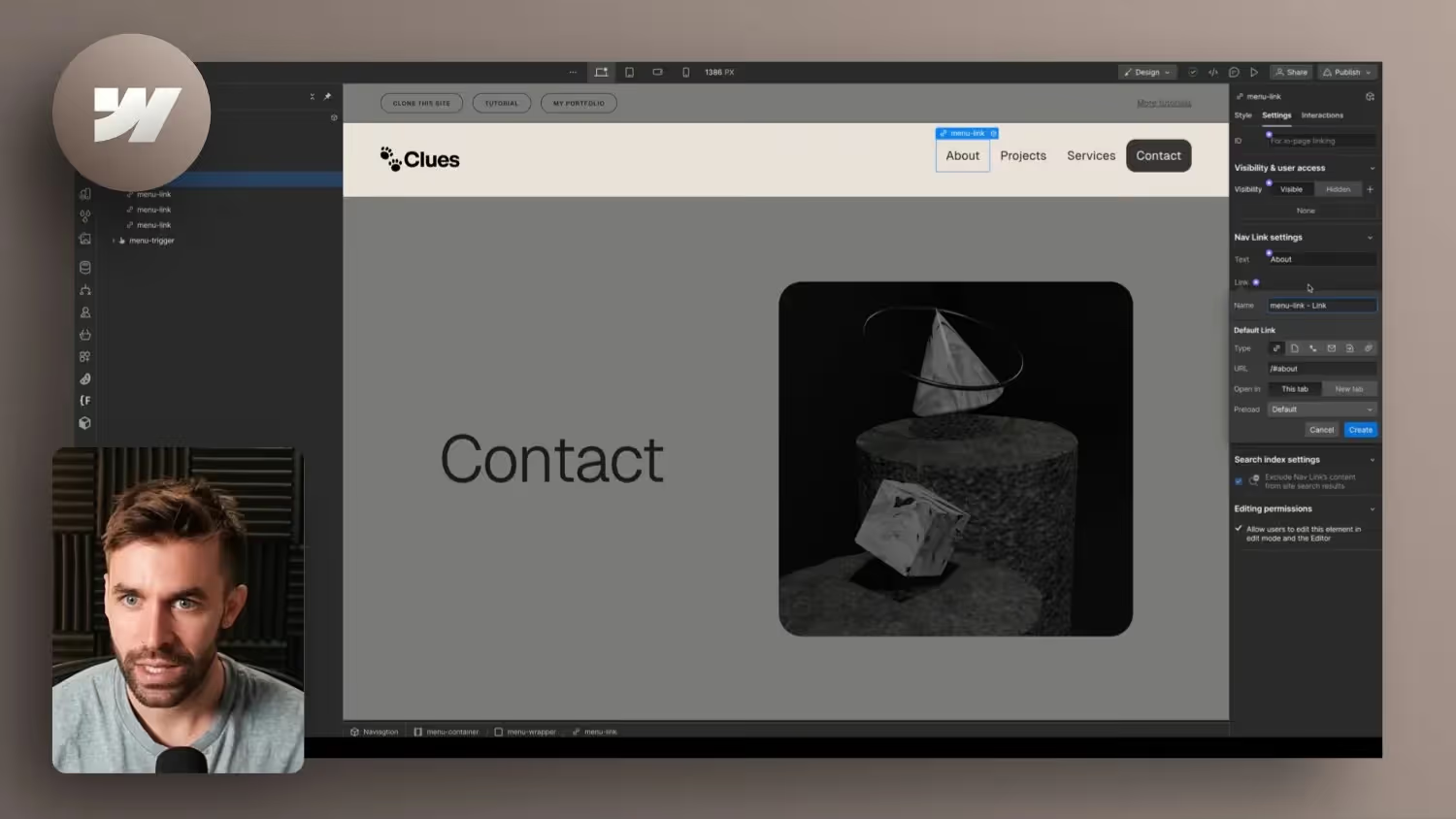
- Click on the plus icon next to “Link” and create an override property.
- Set the link to “Page Section Linking” and select the appropriate section.
- As a result, Webflow recognizes the link as an internal anchor and automatically closes the menu when clicked.
conclusion
This method ensures that your navigation menu automatically closes after you click on an anchor link. This improves usability and gives your website a more professional look.