Animate Native Webflow Navigation with GSAP Timeline (So Easy)
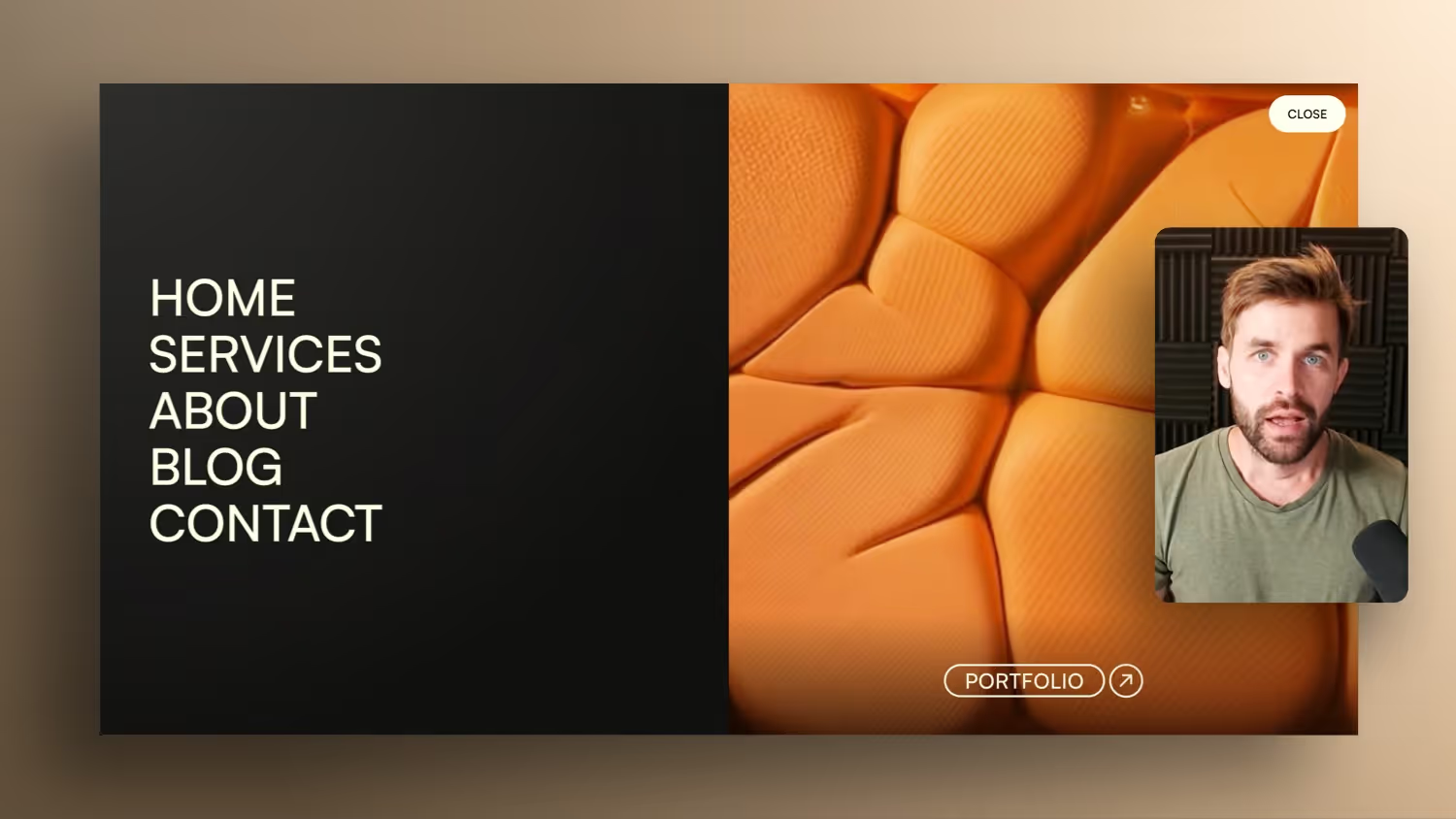

In this tutorial, I'll show you a powerful GSAP timeline trick that allows you to animate native Webflow navigation with just a single interaction — including a buttery-smooth backward animation. You no longer need to build separate “Open” and “Close” animations, as was previously necessary with classic Webflow interactions.
You'll learn how to:
- Disables Webflow's default slide-down animation
- turns native navigation into a fixed fullscreen overlay
- animates navigation links with a nice stagger effect
- insert animated media (video or image)
- Reverse + speed is perfectly matched to Webflow's 600 ms closing time
The result? A cleaner, modern full-screen overlay navigation that builds directly on the native Webflow component — and is significantly faster to implement.
Animate fullscreen navigation in Webflow with GSAP Interactions
One Fullscreen overlay navigation looks modern, high-quality and immediately gives your website more “app feeling”. But it gets tricky in Webflow as soon as you use the native navigation component Because it does not yet come with a convenient trigger as standard to control open/close animations cleanly.
In this article, I'll show you a workflow with which you can still use the native Webflow component and get a GSAP animation that you don't have to build twice: An interaction for in and directly out again via reverse.
Why the Webflow Nav native component is a problem
The Webflow navigation has a built-in slide-down/slide-up animation. That sounds practical at first, but it's a hindrance for a full screen overlay:
- You want to animate your own overlay (not Webflows dropdown)
- You need clean behavior with Open/Close
- Webflow resets the menu when you close it after a delay
display: none
To give you free control, you must first neutralize Webflow's standard animation.
Full screen navigation structure (without losing Webflows dropdown)
You can use multiple Webflow Navigation components on a page. This is handy if you want to keep the normal header navigation but also add an “inspiration” or fullscreen version.
Important structure idea:
The Webflow Navigation element, which contains the links, is retained (incl. NavTag).
This element is set to work as an overlay:
position: fixedWidth: 100%Height: 100%
Because Flexbox settings directly on the Webflow Navigation element are not always reliable, an additional wrapper div inside is worthwhile.
Navigation Inner: Clean layout, flexbox and scrollability
Create a div within the navigation element, e.g. Navigation Inner.
Why that makes sense:
- You can
Navigation Innerupon Flexbox (vertical) set - If your navigation gets longer, you can activate scrolling cleanly (e.g. via Overflow Auto)
- You decouple layout and animation from the “special” Webflow Nav element
Optionally, you can have a media area on the right (video or image) and a button at the bottom. If you want it clean: simply delete media wrappers.
Resolve the Close button correctly (link instead of button)
To close, you need an element that interprets Webflow as “closes the menu.” For that, there is a linkreliable, even though it semantically feels like a button.
So that it is still more barrier-free:
- Give the link
role="button” - Put a
Aria label, such as Close Overlay
Bonus: What counts in Webflow every nav link clicked as a “Close” action. So you can either click on a real link or use a “fictitious” close link.
Disable Webflow's default slide animation
To prevent Webflow from tampering with your GSAP animation, disable the internal transform animation:
- Go to the Webflow navigation element
- At the bottom of settings at Custom Properties
- Set
transform: none! important
This means that the open-state menu is immediately there and Webflow no longer animates in between.
GSAP Interaction: Open navigation with click triggers
Now you build the GSAP interaction on the navigation toggle (your open trigger):
- Trigger: Click
- Setting:
Each click - Play:
Play from beginning - Target: Toggle class (important so that it grips cleanly)
Since you need to “see” the elements when you animate, briefly set the menu to “Show” while you build the timeline.
Animation 1: Overlay/Inner slide-in from above
First animated element: Navigation Inner
- Start:
Y = -100% - End:
Y = 0% - Duration: approx. 1s (or longer, depending on the look)
- Easing: e.g. Expo Out
That is your basic movement: the overlay slips neatly into the picture.
Animation 2: Insert links as a stagger
Next, animate the navigation links (such as the item that contains the link list).
Important: You don't just want to animate one element, but all links within it.
- Target: class of nav links
- filter: inside of nav link wrapper element
- Movement:
Y -100%→0% - Offset time: e.g. 50ms for the stagger effect
You can use the timeline to start the links later so that they don't “pop in” too early. This creates that masked, high-quality stagger look.
Animation 3: Close button + optional button
For close buttons and optional CTA, you can work with Scale, for example:
- Scale:
0→1 - Easing: Expo Out
If Scale looks funny on a wrapper due to gradients or layout, pack an additional div around it and rather animate the inner element.
Animation 4: Media element (video/image) laterally inserted
For the media area (video or image), for example, you can use an X animation:
X = -100%→0%- slightly longer duration for a smooth look
This makes the overlay look like a real UI panel, not a dropdown.
Reverse closing: the workflow boost
Now comes the most important part: You don't want to build a second interaction.
You create a second click trigger — this time on your close link:
- Trigger: Click
- Setting:
Each click - Action:
Reverse
The entire timeline thus runs backwards.
Adjust speed so Webflow doesn't “cut off”
Webflow sets the menu after approx. 600ms Back on display: none. If your reverse animation takes longer, it will be cut off.
Solution: Increase speed.
Instead of speed = 1 For example, do you use:
2.02.5- or higher until it fits neatly into 600ms
This gives you a quick, clean animation — without an extra setup.
So that Nav links can also be closed cleanly
If you click on a Nav link (such as “Services” or an anchor link), the reverse animation should also run.
To do this, add another trigger:
- Target: link list or directly the link class
- Action: Reverse
- Speed: also increase accordingly
This means that your overlay always closes neatly animated — whether it's a close link or a nav link.
Fullscreen Nav in Webflow — native component, modern animation
With this setup, you combine the best of both worlds:
- native Webflow Nav component remains intact
- Fullscreen overlay works cleanly
- Stagger animations look high-quality
- only eine GSAP interaction required
- Reverse + speed saves a lot of time and nerves
Once you set it up cleanly as a component and activate “on all pages,” you can reuse it everywhere and quickly adapt it to designs.