Starting a New Webflow Project – AI (Claude) Migrates My CMS
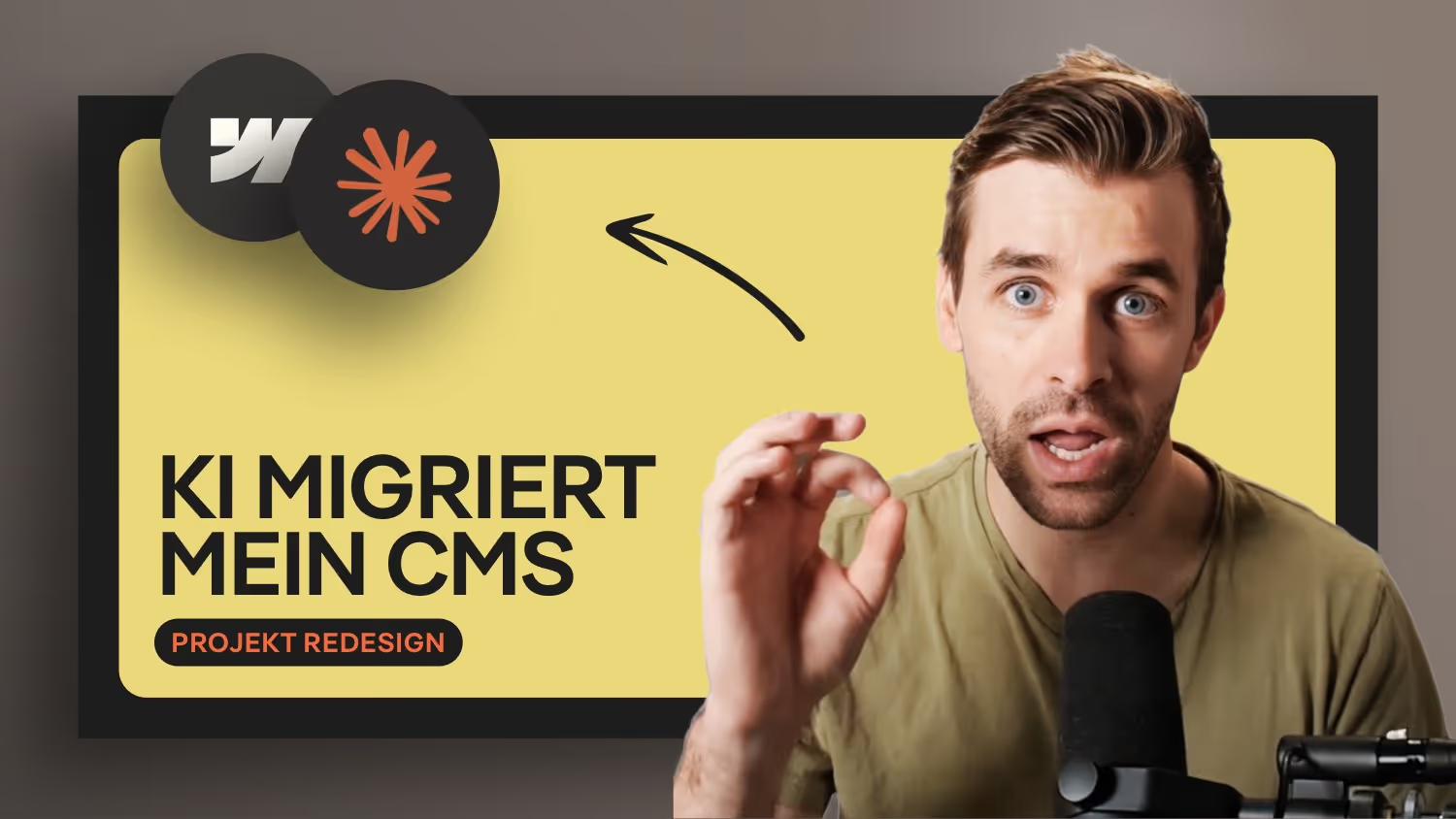

Moving a complete Webflow CMS to a new project – without hours of manual work. With Claude AI, it’s faster than you’d think.
In this video I show you step by step how to transfer existing CMS collections and items to a new project when starting a Webflow redesign. We use Claude AI with the Webflow MCP server and combine it with a smart CSV import workflow.
What you’ll learn in this video:
- Mirror CMS collections and fields automatically
- Transfer hundreds of items including reference fields and images
- Link multilingual content (DE and EN) correctly
- Avoid the most common mistake in locale imports
Migrating Your Webflow CMS to a New Project with Claude AI
A redesign is exciting – but what happens to the hundreds of CMS entries you’ve built up over months? In this post, I’ll show you how to transfer your Webflow CMS to a brand new project using Claude AI and a smart CSV import.
Why start a new project at all?
When redesigning a Webflow site, you have two basic options. You can work within the existing project and build new pages alongside the live ones. Or you start fresh with a new project and transfer your content deliberately.
The second approach makes especially good sense when you’re adopting a new framework like MAST. MAST comes with ready-made layout components that you don’t need to rebuild from scratch. A clean new project avoids confusion from having some pages live and others not within the same project.
Connecting Claude AI to Webflow
Claude AI can access your Webflow account directly via the Webflow MCP server. Setup is straightforward: click the plus icon in Claude’s interface, search for Webflow under Connectors, and authorize the connection. From that point on, you can give Claude tasks in plain language that it executes directly in your CMS.
Mirroring CMS collections
The first step in any transfer is the structure. Claude reads the fields from your existing collection and recreates them in the new project – including reference fields and self-reference fields.
One tip worth giving Claude upfront: ask it to create the fields in the same order. The Webflow API doesn’t sort fields automatically, but Claude will follow the instruction if you explicitly ask. Fields you no longer need cannot be deleted via the API – Webflow currently doesn’t allow this. Those have to be removed manually.
Transferring items: directly or via CSV
For smaller collections with few entries, Claude can transfer items directly via the API. It handles text, images, and reference fields all at once. Especially useful: it independently detects when you’ve deleted fields in the meantime and adjusts its plan accordingly.
For larger collections like a blog with over 240 entries, Claude itself recommends the CSV approach. It’s faster, more stable, and saves token budget.
Blog migration via CSV
The CSV export is available directly inside the Webflow CMS. For multilingual projects, export each language separately.
There’s one critical point when importing: Webflow matches items during locale imports using the Item ID, not the slug. This means: if you want your English content correctly linked to the German entries, first export the German CSV from the new project. That CSV contains the freshly generated item IDs. Add those item IDs as a column in your English CSV, then choose “Update matching items” during import.
This ensures German and English posts are recognized as the same item.
Plan ahead with a custom date field
An important tip for future projects: create your own publication date as a CMS field. Webflow always overwrites the automatic creation date with today’s date during import. With a dedicated date field, your posts remain correctly sortable even after a migration.
Plan transfer and next steps
Once the new project is ready, you can transfer your existing Webflow plan directly through the billing settings – no more going through support.
What’s next: reference fields like “related posts“ can also be populated by Claude. It reads through the posts, identifies topical connections, and sets the right references.
Conclusion
With Claude AI and CSV imports, you have a clear workflow for setting up Webflow projects efficiently. Claude handles the structure, the items, and the localization. Only a few steps remain manual.
If you want to go deeper with Webflow, check out the online courses at Formburg: https://www.formburg.com/courses

-blog.avif)