Floating Label Animation for Form Input Fields in Webflow
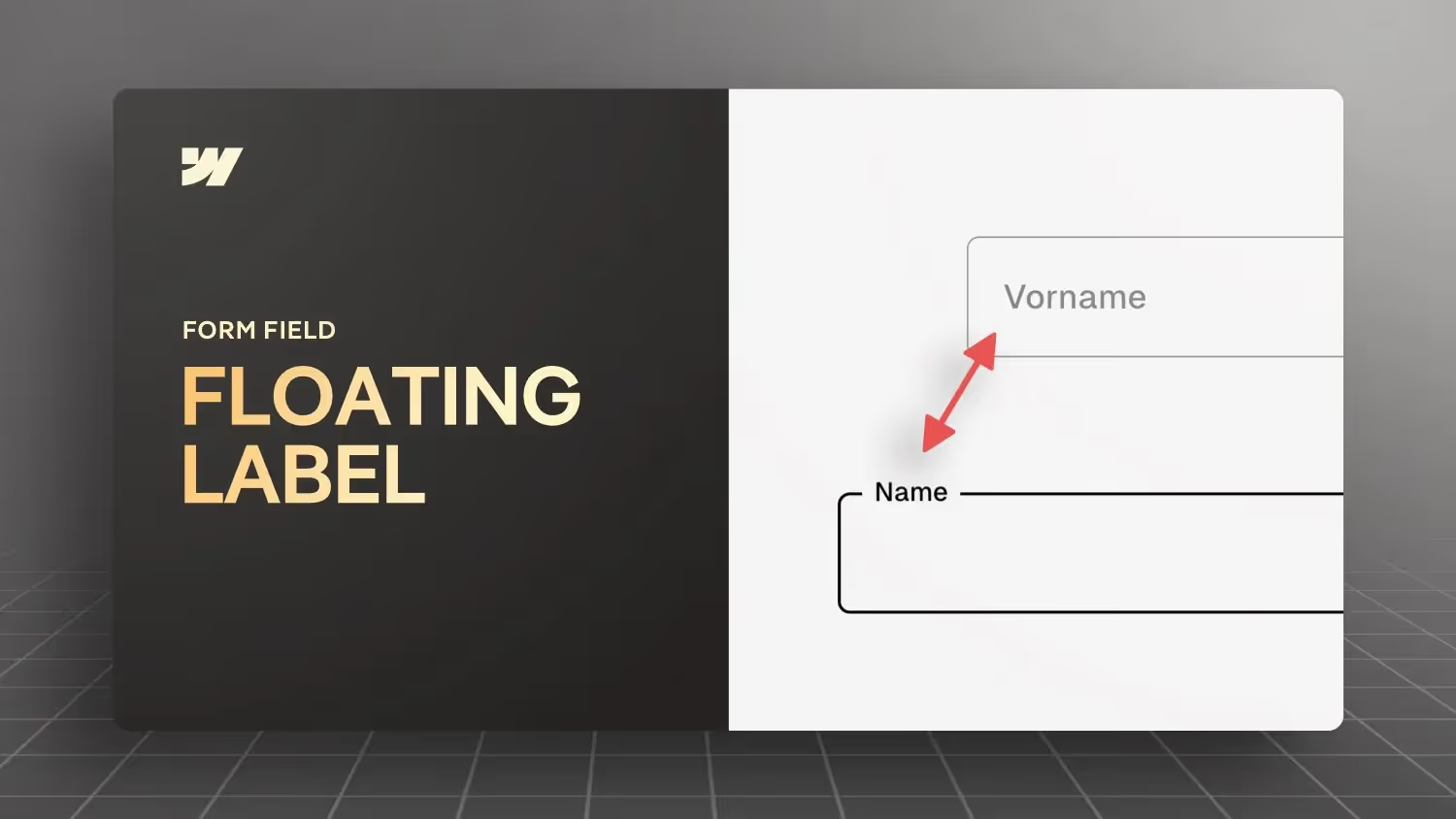

This Webflow tutorial is about animating labels for input fields, as you know from Material Design and Android forms. It shows how to position labels within the input field and how to animate them when the field is active. It also explains how to use form blocks and form elements in Webflow. The solution is a pure CSS solution that works without JavaScript. The use of custom CSS and combo classes is also discussed.
Webflow tutorial: Animated input labels like Material Design
Welcome to a new Webflow tutorial. My name is Jonas Arleth and today I'm going to show you how to create floating labels that move dynamically as soon as you click in. This method works completely without JavaScript and is a pure CSS solution that you can use directly in the Webflow Designer.
Introduction: What we're going to build
In this tutorial, I'll show you how to design input fields where the labels start within the field and move up when you click in the field. This makes for a clean and tidy design, especially if you have a lot of form fields on a page. This technology is standard in Google Material Design and is easy to reproduce.
Preparation: Add a mold block
Before we get started, make sure you add a shape block element. You can find this in the Forms section of Webflow. Just drag and drop it into your project. It is important that all form fields must be within this form block.
Step 1: Form Block Styling
By default, Webflow gives these elements specific styles. To change this, make sure that the shape block is full width:
- Select the shape block.
- Set the width to 100%.
- Remove any default padding and margin and set them to zero.
Styling input fields
Now that the shape block is ready, we can start styling the input fields.
Step 2: Create input field and label
- Name the input field as
Demo input fieldand the label asDemo label. - Set a minimum height for the input field, e.g. 5 Rem.
Step 3: Set colors and outline
- Set the background color of the input field to white.
- Use a gray color for the outline and placeholder text.
- Make sure that the text within the input field is black.
Step 4: Input field focus state
- Add a hover and focus transition so that the input field gets a thicker and black outline when interacting.
Label positioning and animation
Step 5: Position the label within the input field
- Create one
DivWrapper around the input field and label and name it asDemo-Input-Group. - Set this wrapper to
position: relative. - Put the label on
position: absoluteand move it up by 50%. - Use
transform: translateY (-50%)to position the label exactly in the middle.
Step 6: Label animation when focusing
- Add a CSS transition to gently animate the label to its target position.
- Use
Pointer-events: nonefor the label so that it doesn't block the click on the input field.
Custom CSS for animation
Step 7: Insert Custom CSS
Add an embed element to Demo wrapper Type and write in the custom CSS code from the video:
<style>

  .demo-input-field:focus + .demo-label,
  .demo-input-field:not (:placeholder-shown) + .demo-label {
  top: 0%;
  margin-left: 1rem;
  font-size: 1.1rem;
  color: #000000;
  }

</style>
In the Webflow Inpur form, a space must be included as a placeholder!
Step 8: Test and fine-tune
- Test the functionality by clicking on the input field and making sure that the label moves correctly.
- Adjust any subtleties such as font size or spacing.
conclusion
With these steps, you've now created an animated input field that behaves dynamically and looks appealing. This method is not only visually appealing but also easy to implement and adaptable for various projects.
If you want to dive deeper into Webflow, I recommend my Webflow online course.
I hope this tutorial was helpful to you. Have fun trying out and customizing your own input fields in Webflow!


-blog.jpg)