Next-Level 3D Letter Animation in Webflow (NEW GSAP Ease Visualizer)
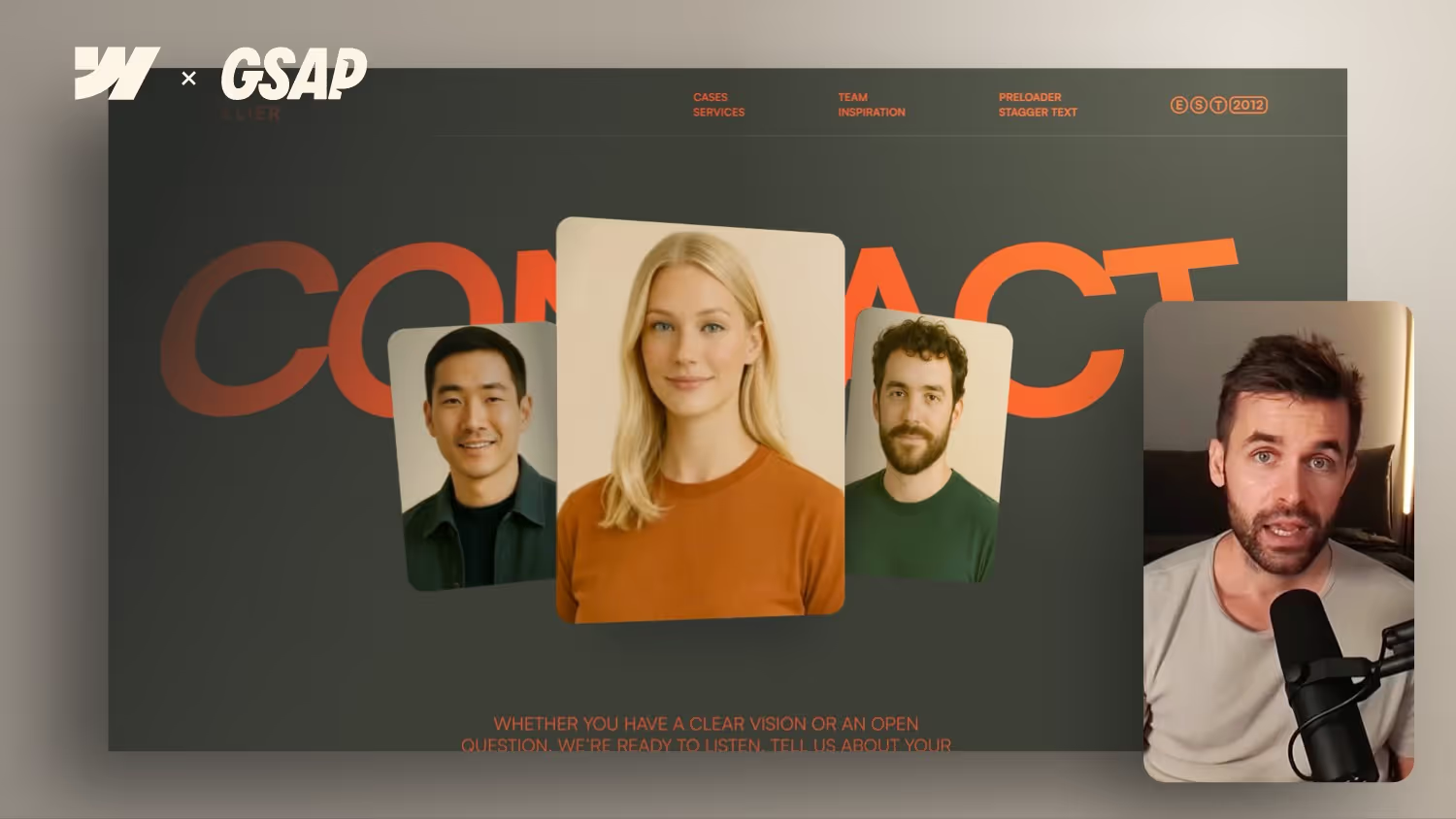

This Webflow GSAP animation feels like something straight out of a modern Apple-style UI: a 3D title, elastic bounce easing, and a stage-like composition with real depth.
In this tutorial, you’ll learn step by step how to use the new GSAP Ease Visualizer in Webflow to build a dynamic stage animation for a contact page. You’ll combine Split Text, 3D transforms, stagger effects, and custom elastic easing to create a much more modern and lively motion design.
I also show you how to arrange media elements with depth, animate shadows separately, and why a small custom CSS fix is needed to make the 3D letter animation look truly realistic when using letter-based split text. Perfect for web designers and developers who want to create more polished page load animations in Webflow.
If you’re already part of my Webflow GSAP Interaction Masterclass, you can copy this setup directly and use it in your client projects.
How to Build Modern 3D Animations in Webflow with GSAP
Modern interfaces are no longer defined by clean layout and typography alone. Motion often makes the difference between a design that feels average and one that feels premium, dynamic, and current. That’s exactly where this setup comes in: a stage-like animation in Webflow where text and media elements animate in 3D space and feel much more alive thanks to elastic easing.
The overall look is similar to current UI trends where motion feels more physical, and slightly bouncy. What makes this setup especially strong is the combination of 3D depth, Split Text, stagger effects, and elastic bounce.
Why This Animation Works So Well
A lot of Webflow animations are technically clean but still feel a bit flat. The difference often comes down to the right mix of depth, timing, and easing.
In this case, several things work together. The title letters animate individually, the media elements move into the scene with a stagger, and a separately animated shadow adds even more depth. This creates not just movement, but a more believable sense of space.
The easing is especially important. Instead of using a standard linear or soft default curve, this setup uses elastic easing. That makes the motion feel less rigid and gives it a controlled bounce that looks much more modern.
Building the Stage Structure in Webflow
The setup starts with a wrapper that acts as the stage for the entire animation. This area is built as a flex container, aligned vertically, with all content positioned top center.
One of the most interesting parts here is the use of container query units for the title. This makes the text behave similarly to vw, growing with the available space but stopping cleanly once the container reaches its maximum width. That’s ideal for large headlines that should scale responsively without becoming oversized.
The title also gets essential 3D settings from the start. That includes perspective, transform-style: preserve-3d, backface-visibility: hidden, and will-change: transform. These settings help ensure the later animation performs better and feels more convincing.
Arranging Media Elements with Depth
Below the title, a media group is built using multiple elements. This can be a background video or regular images. The important part is not the media type itself, but how the elements are arranged relative to one another.
The media items are placed side by side, slightly overlapped, and given different widths. The center element sits visually closer to the viewer, while the outer elements are slightly rotated on the Z axis. Even before animation starts, this creates a strong stage-like composition.
That makes a big difference. Instead of looking like a simple row of images, the layout immediately feels more spatial and more intentional. This works especially well for hero sections, portfolios, or contact pages.
Why the Shadow Should Not Sit Directly on the Image
One of the smartest details in this setup is the shadow. Instead of applying a box shadow directly to the main media element, a separate shadow layer is placed behind it.
That has a major advantage: you can animate the shadow independently. This allows it to appear slightly later and support the movement of the main element instead of simply moving with it. The result feels deeper and much more polished.
In 3D-style layouts, these small visual delays can make motion feel more realistic because they behave more like physical movement.
Creating the Title Animation with Split Text
The title uses GSAP’s Split Text functionality so each letter can be animated individually.
From there, the animation combines several properties: opacity, scale, move Y, rotation, skew, and movement on the Z axis. Together with a stagger, this creates an effect where the letters do not simply fade in, but appear to build themselves out of 3D space.
A particularly strong choice is to start the stagger from the center. That makes the motion feel more focused and works better with the media elements, which also animate in from the center of the composition.
Why a CSS Fix Is Needed for Proper 3D Perspective
As soon as the text is split into individual letters, additional wrapper elements are created. That’s where the challenge begins: the 3D perspective initially sits on the original title, not automatically on the new split wrappers.
That means the animation may technically work, but it won’t feel fully realistic in 3D space. The solution is a small custom CSS fix that applies the same 3D perspective settings to the relevant split elements.
It’s a tiny step, but it makes a huge difference if you want Split Text animations in Webflow to feel truly spatial.
The Right Easing Changes Everything
The real magic comes from the Ease Visualizer setup. Instead of choosing a random curve, the elastic easing is tuned until the movement feels soft, slightly springy, and still controlled.
That bounce behavior is what makes the title and images feel less mechanical and more physical. This is especially useful if you want to build interfaces that feel more modern, premium, and slightly experimental.
The key is restraint. Too much elastic motion quickly feels exaggerated. But when used more subtly, it creates exactly that polished, Apple-like motion style many designers are drawn to right now.
Timing the Images, Shadow, and Copy Correctly
Once the title animation is finished, the media elements animate in. They move upward from below, rotate in 3D space, and use the same elastic motion language.
After that, the shadow appears separately and scales in. Because it comes in slightly later, it strengthens the sense of depth much more effectively than if everything appeared at once.
Finally, the copy text enters. Here, a much calmer animation is enough, such as opacity and move y, again with a stagger. The most important thing is timing: the text should only appear once the stronger motion in the scene is mostly finished. That keeps the hierarchy clear and makes the sequence feel more polished.
Who This Setup Is Best For
This setup is especially useful if you build landing pages, portfolio sites, or high-end client projects in Webflow. Any time you want to stage a section more intentionally, this kind of motion can make a major difference.
It’s not just a flashy effect. It’s a motion system that helps a section feel more premium, more modern, and more deliberate. In a market where many websites are structurally similar, motion design like this can become a real differentiator.
Final Thoughts
If you already work with GSAP in Webflow or want to go deeper, this combination of 3D space, Split Text, stagger, shadow layering, and elastic easing is an incredibly strong setup. The animation feels modern, physical, and far more interesting than standard motion patterns.
What really matters is not just the effect itself, but how all the details work together. Perspective, timing, stagger, and easing all support each other. That’s what creates a result that does not just move well, but actually feels premium.
If you’re already part of my Webflow GSAP Interaction Masterclass, you can use this setup directly in your own projects.