Fathom Analytics: Track Events via Custom Attributes in Webflow
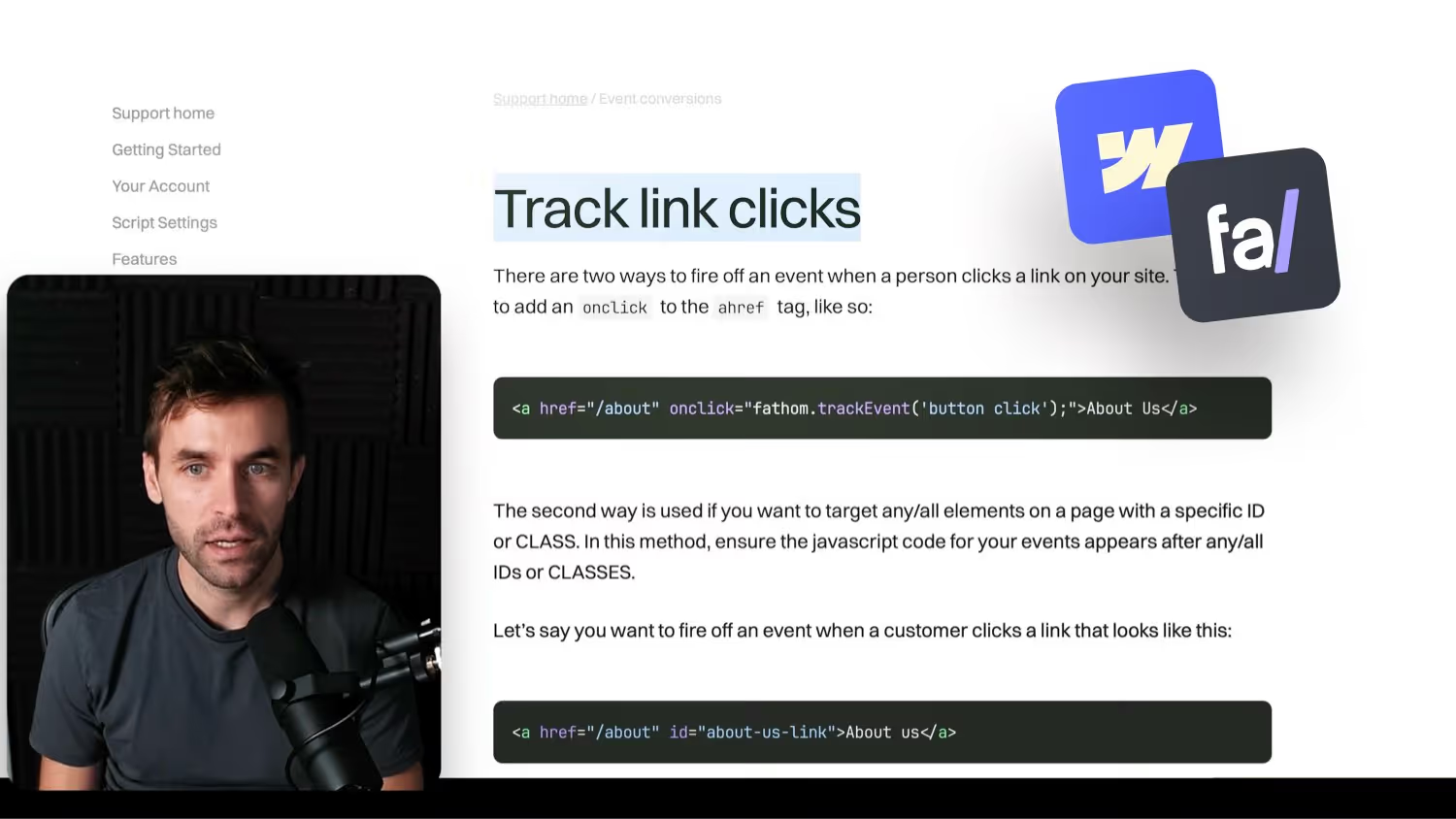

In this video, I'll show you how to efficiently track events on your website with Fathom Analytics — using custom attributes in Webflow. Instead of writing individual scripts for each link, we use a more streamlined method that keeps your code clean and provides you with accurate tracking data. I'll also explain why Fathom Analytics is a great, cookie-free alternative to Google Analytics.
→ Click here for code template *
Fathom Analytics: Get $10 off via this link *
Efficient event tracking with Fathom Analytics and Webflow
Why Fathom Analytics?
Fathom Analytics * is an excellent, privacy-friendly alternative to Google Analytics. It does not require cookies, which means that no cookie banner is required. Fathom is an ideal solution, particularly for customers who only need basic analyses.
The problem with the traditional method
Fathom's recommended method for tracking link clicks requires adding individual scripts and unique IDs for each item you want to track. This results in:
- Confusing code: Lots of script snippets in the custom code area.
- Complex care: Any change requires you to customize scripts and IDs.
The solution: Tracking via custom attributes
Instead of using custom scripts, we can make event tracking more efficient by using custom attributes in Webflow.
Implementation steps:
Add custom attributes:
- Select the desired element (e.g. a button) in Webflow.
- Add a new attribute called
Fathom eventadd. - Enter the desired event description as the value, which should be displayed in the Fathom dashboard.
Include global script:
- Füge This JavaScript code snippet is *, which all elements with the attribute
Fathom eventrecognizes. - When you click on the element, this script sends the event to Fathom Analytics.
Publish and test:
- Publish the changes to Webflow
- Test the events by clicking on the appropriate elements and checking if they appear in the Fathom dashboard.
Benefits of this method
- Clean code: No redundant scripts for every element.
- Easy expandability: New events can be tracked by adding the attribute to additional elements.
- Performance: Minimal impact on page load time
conclusion
By using custom attributes in Webflow, event tracking with Fathom Analytics is significantly more efficient and clear. It saves time during implementation and maintenance and improves website performance.
Call-to-action
If you want to learn more about Webflow and efficient web design techniques, check out our courses and products on Formburg!
Links marked with * are affiliate links.
-blog.jpg)