3D Tablet Scroll Animation in Webflow
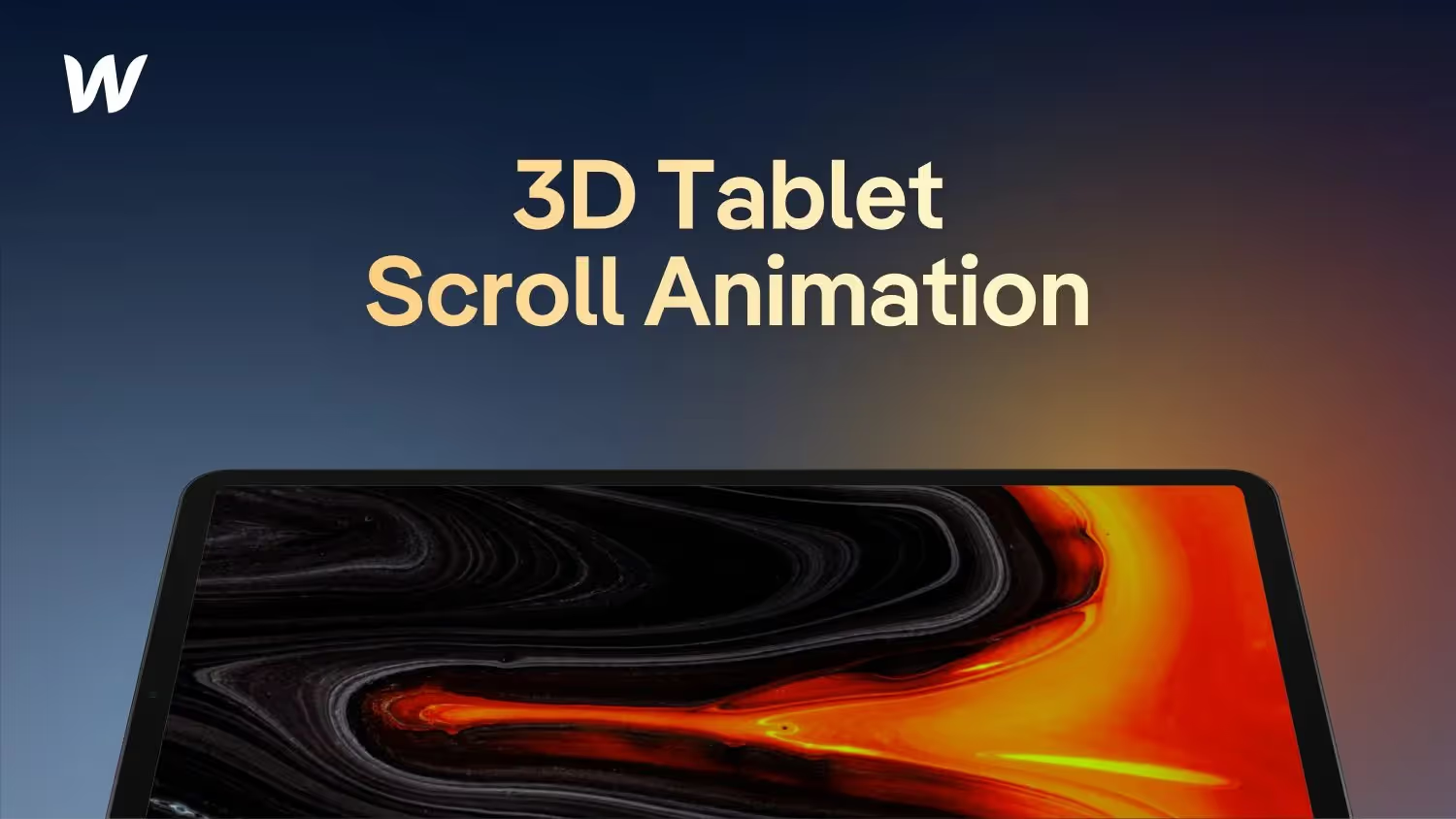

We're building a 3D scrolling animation together in Webflow that allows you to slowly rotate a tablet towards the viewer while scrolling. With the help of a 3D perspective, you can achieve a great effect here in just a few steps and even use animated videos instead of a static image. I use this structure in one of my case studies in my portfolio.
Chapter:
00:00 — Intro and preview
00:34 — Using 2D material in 3D
01:13 — Build 3D effect
05:07 — Create animation
06:47 — Include animated video
07:35 — Result
Create an amazing tablet scroll animation for your portfolio in Webflow
Welcome to a new Webflow tutorial where we'll create a cool tablet scroll animation together that you can also perfectly integrate into your portfolio. My name is Jonas Arleth and I will show you step by step how to implement this animation in Webflow with just a few clicks. We'll be a mockup template use the ones we created in the last video to make the process easier. Whether you want to use an image or an animated video, this animation will adapt perfectly to scrolling. Let's get started right away!
Understanding the starting point
To create the tablet scroll animation, we need a basic structure in Webflow. It consists of a section with text content and two important elements: the “Tablet Mockup Animation” and the “3D Tablet Wrapper”.
To get started, we'll create a new section and add text content that you can customize accordingly. The “tablet mockup animation” serves as a background image or video that is displayed on the tablet. Use the mockup template from the previous video or choose your own image or video. Note that we're creating the realistic 3D effect using CSS 3D Transform. The tablet is therefore a 2D image and not a real 3D file.
Configure 3D animation settings
To make the tablet look shot in 3D, we need to make the appropriate settings. We select the “3D Tablet Wrapper” element and go to the Transform 3D properties. There, we add a rotation animation by rotating the element by a specific number of degrees.
Normally, the tablet would look flat without a realistic perspective. To avoid this, we set the parent element's “Children Perspective” to a value of around 1000. This determines the perspective for the child element, i.e. the tablet. Adjustments can be made to the values depending on the desired effect.
Create the scroll animation
To create the actual scroll animation, we use Webflow's interaction features. We select the “3D Tablet Wrapper” element and configure the animation that is played as the user scrolls.
By triggering the animation while scrolling, we can make the tablet rotate smoothly. To do this, we create a new scroll animation and define the start and end state of the rotation. Depending on the desired effect, the values can be adjusted to individually adjust the animation.
Integrate images and videos
A special feature of this tablet scroll animation is the ability to integrate both images and videos.