
Create a Masked Website Splitscreen Scroll Animation
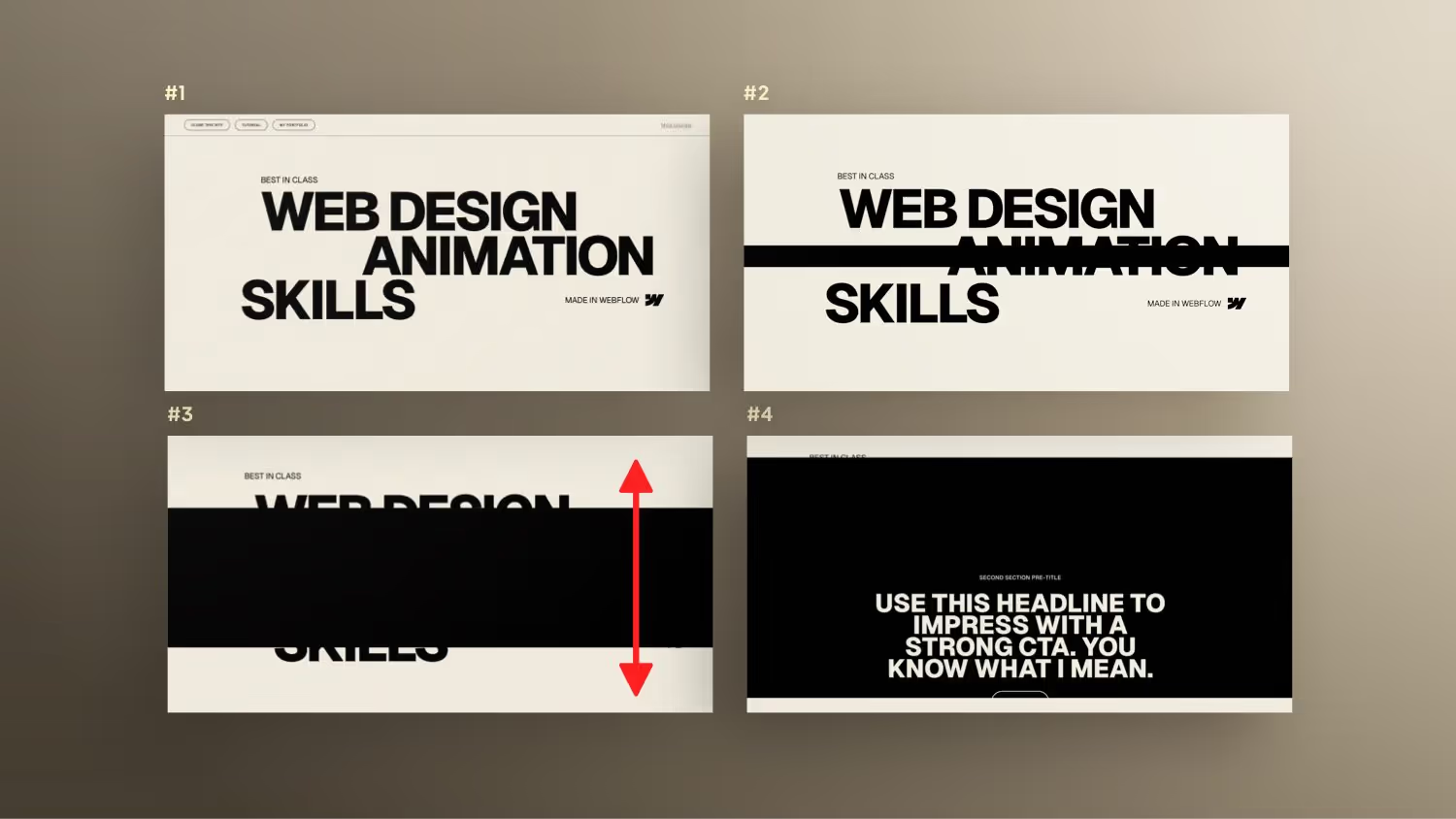

In this Webflow tutorial, Jonas Arleth shows how to create a masked scroll animation that places a split-screen effect over the text. He explains how to analyze and recreate the animation. In doing so, he addresses various elements such as navigation, text movement and background color. It also shows how to move the text in the animation and gives tips on how to optimize it. In the end, he recommends his Webflow online course for deeper understanding and professional implementation.
Seen at: https://pioneer-portfolio.webflow.io
Webflow Tutorial: Create scroll animations with split screen effect
Welcome to my new Webflow tutorial! In this post, I'll show you how to create engaging scrolling animations with a split-screen effect. This technique is a great way to upgrade your website and engage visitors.
Introduction to split-screen scroll animation
In this section, I'll give you an overview of what a split-screen scrolling animation is and why it's so effective. We'll focus on how this effect attracts visitors' attention and how it can be professionally implemented in Webflow.
Step 1: Planning and Preparation
Before we start implementing it, it's important to have a plan. I'll show you how to outline your ideas and plan your animation carefully. We'll talk about how you can structure and prepare the various elements of your animation to get a smooth result.
Step 2: Building the website in Webflow
Next, we'll start building the website in Webflow. I'll show you how to create the various sections and elements you'll need for your scrolling animation. We'll focus on how you can use Flexbox and other layout tools in Webflow to optimize your site's design.
Step 3: Implement the scroll animation
Now it's getting exciting! In this section, I'll show you how to implement the actual scrolling animation with a split-screen effect in Webflow. We'll go through the process step-by-step, from creating the animation triggers to fine-tuning the moves and effects.
Step 4: Fine-tuning and optimization
Now that we've created the scrolling animation, it's time to tweak and fine-tune it. I'll show you how to adjust the speed and timing of your animation to get the best result. We'll also talk about how you can optimize your site's performance to ensure that your animation runs smoothly.
conclusion
With this tutorial, you're now able to create engaging scrolling animations with a split-screen effect in Webflow. I hope this post has helped you improve your web design skills and take your website to the next level. Have fun implementing and experimenting with new animation techniques!
If you're looking for more Webflow Scroll animation tutorials, just Google by Formburg Webflow Scroll Animation