How Fast Does a Webflow Website Load? Google PageSpeed Optimization


Google loves fast websites. That is why websites with a good PageSpeed are also rewarded with a good ranking by the search engine giant. One more reason to speed up the loading speed of your website.
Here are a few tips on how to easily give your Webflow website the necessary push in terms of loading time. And by doing so, improve your Google ranking at the same time.
But before we get started, let's see how fast an empty Webflow page loads. This is our initial value, which we then use to look at everything else.
The Google Page Speed Test gives an outstanding PageSpeed Score of 100 for computers and 89 for mobile for an empty Webflow website. As background information for you: Experience has shown that the PageSpeed score for mobile is usually worse than that for computers. But don't worry. Even the websites of successful multinationals usually have a lower mobile score than 89. This means that as a starting point, this is already good. But we're making the PageSpeed Score even better. With the following tips.
Tip 1: Minimize CSS and JavaScript code
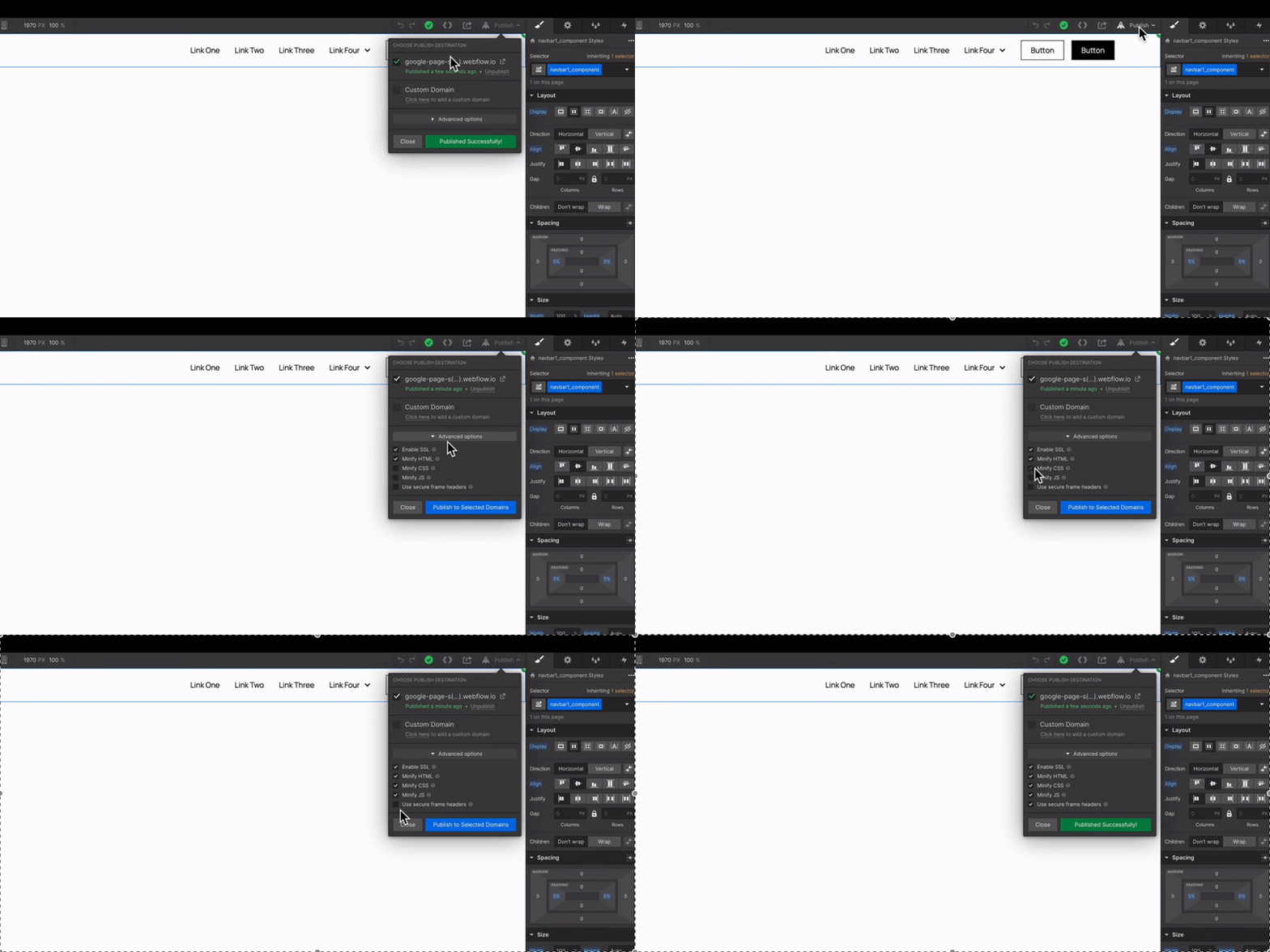
Let's compress the JavaScript data first. To do this, go to your Webflow dashboard Publish and select all Minify options under 'Advanced Options. '
Tip 2: Deactivate lazy loading for images in the visible area
In Webflow, all images are set to lazy loading by default. Google does not rate this positively for images in the visible area. Logos are usually always in the directly visible area. So select your logo within Webflow, go to the cog and choose under Load 'Auto: Defaults to Browser' off.

Tip 3: Prioritize visible area and set images/videos correctly
The visible area is essential for your page speed. If there is not only a logo here, but also a large image or a video, you should take action (I'll explain how to optimize your video below). For example, if an image is in the visible area of your website, PageSpeed Insights may show you that you should set an explicit width and height. Either you enter this width and height in the image settings or choose 'Fit Cover' and give the image a fixed height and width.
Tip 4: Provide images in modern formats
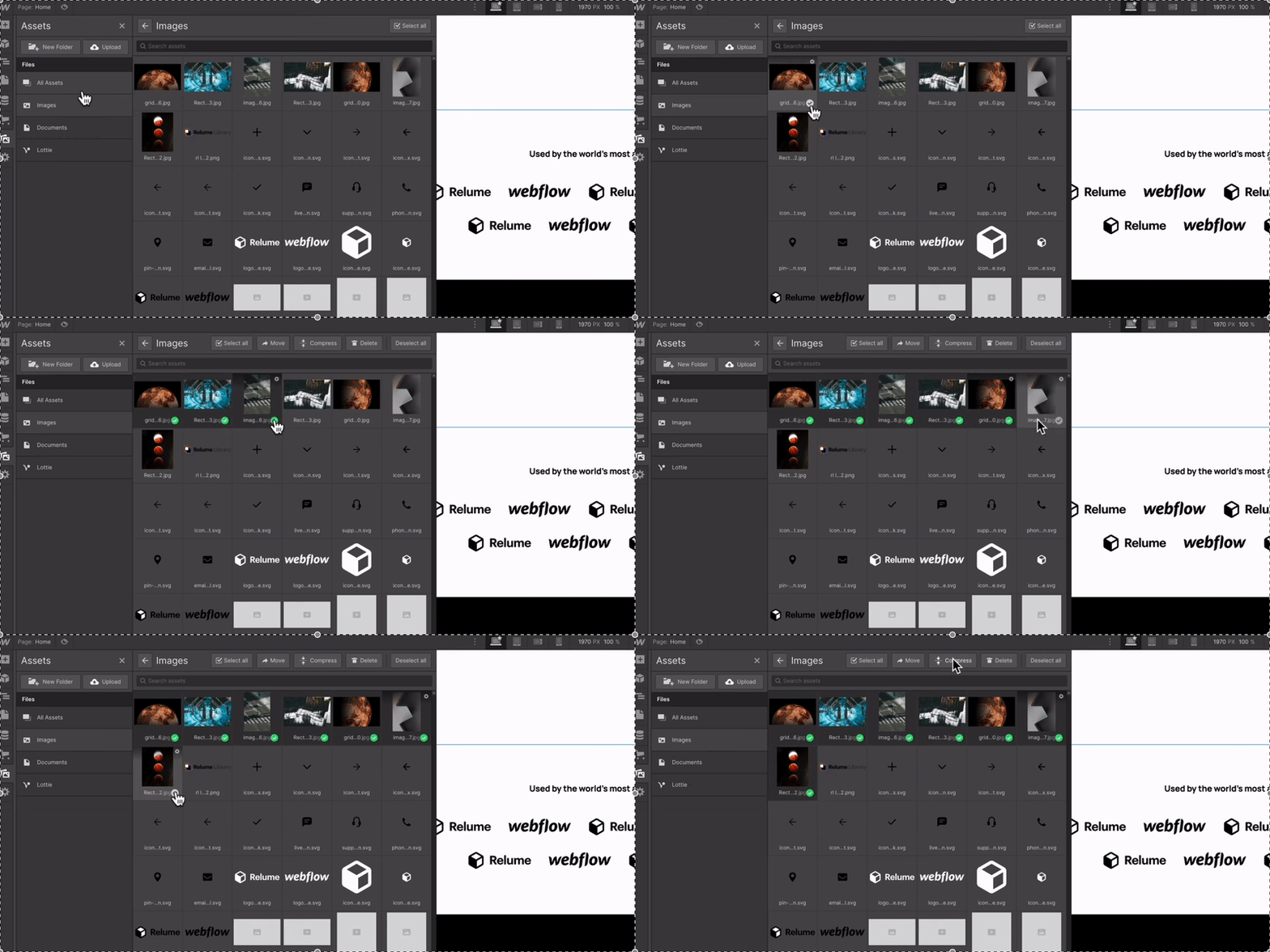
Your images are usually JPGs or PNGs. But there are modern formats that contribute to faster PageSpeed. In Webflow, select Images Select the images on your website and click on 'Compress. ' The images are then converted to a WebP format and the file size is compressed.
Tip 5: Size logos & small graphics
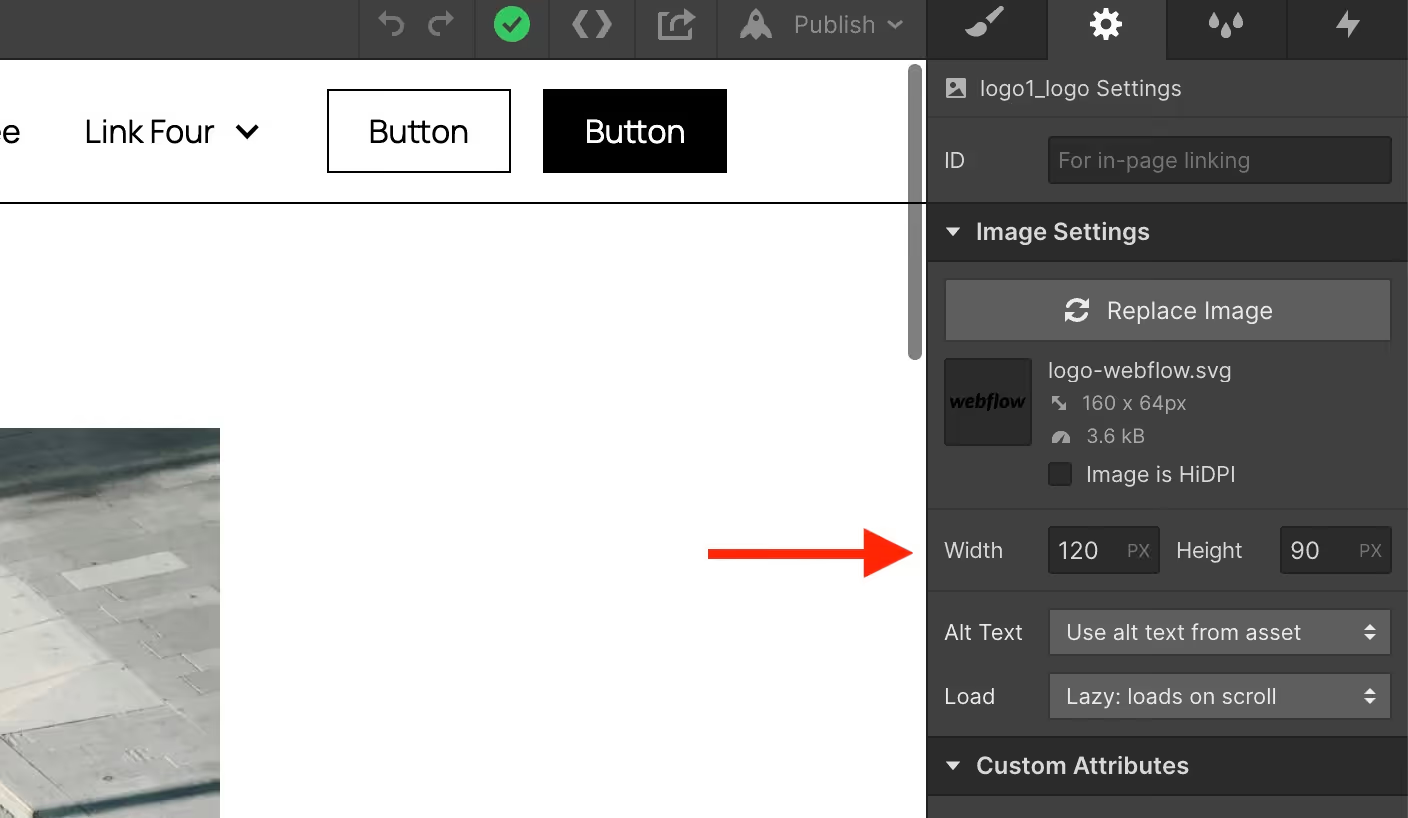
Among the Image Settings You should always set the width and height for small images. Especially with SVG.
Tip 6: Avoid large network payloads with background videos
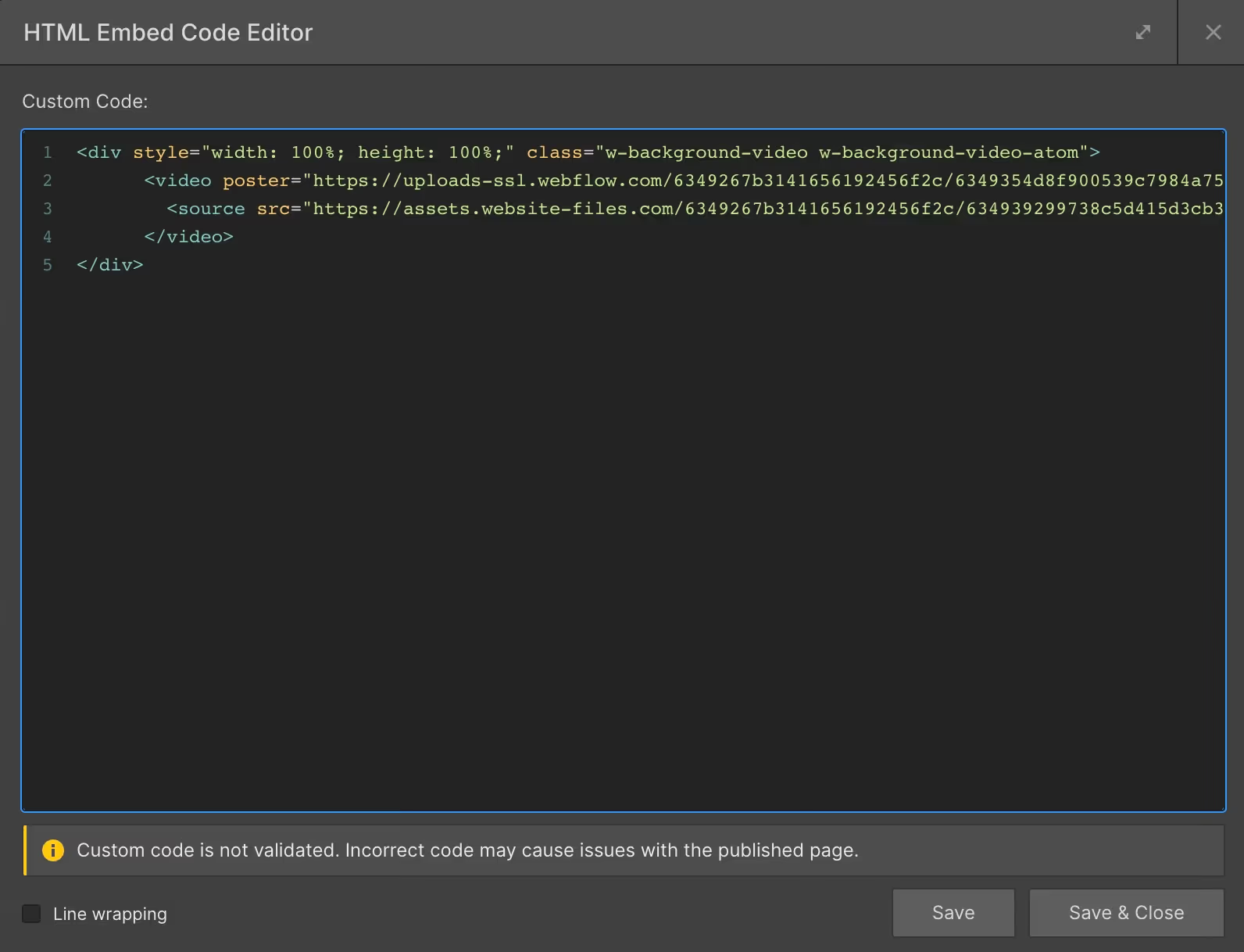
Background videos are very popular on websites - and with Webflow they are also easy to embed. Although the video is integrated on your Webflow website in compressed form, this worsens the PageSpeed score. The reason is the high network payload. This is particularly noticeable on smartphones - for example when someone opens your website with the background video while on the go and needs a lot of bandwidth. Conveniently, the transfer source and associated link are displayed directly in PageSpeed Insights. Then integrate an HTML embed where your video is on the website and enter the link to your video as the source. That way you only have one source. You can copy the embed code from my example Webflow project from the video (link at the bottom).
Tip 7: Upload CMS images in WebP format
You should also upload all the images in your CMS in WebP format. So check all images in your blog grid.
Tip 8: Avoid lots of animations and therefore more Java Script code
The headline says it all here. Animations are super easy to implement with Webflow and are also very appealing. However, many animations also mean longer load times and therefore a poorer PageSpeed score. From project to project, it must be assessed how important individual animations are or whether you prefer a faster loading time. Otherwise, avoid unnecessary Java Script code.
Tip 9: Reuse CSS styles and build them logically
Google loves logically structured websites. You can control this on the one hand through the content, but also through the appropriate CSS styles. So create headlines, content blocks, etc. not only visually beautiful, but also logically. And use the same CSS styles over and over again for functionally identical elements.
Tip 10: Remove unused interactions and CSS styles
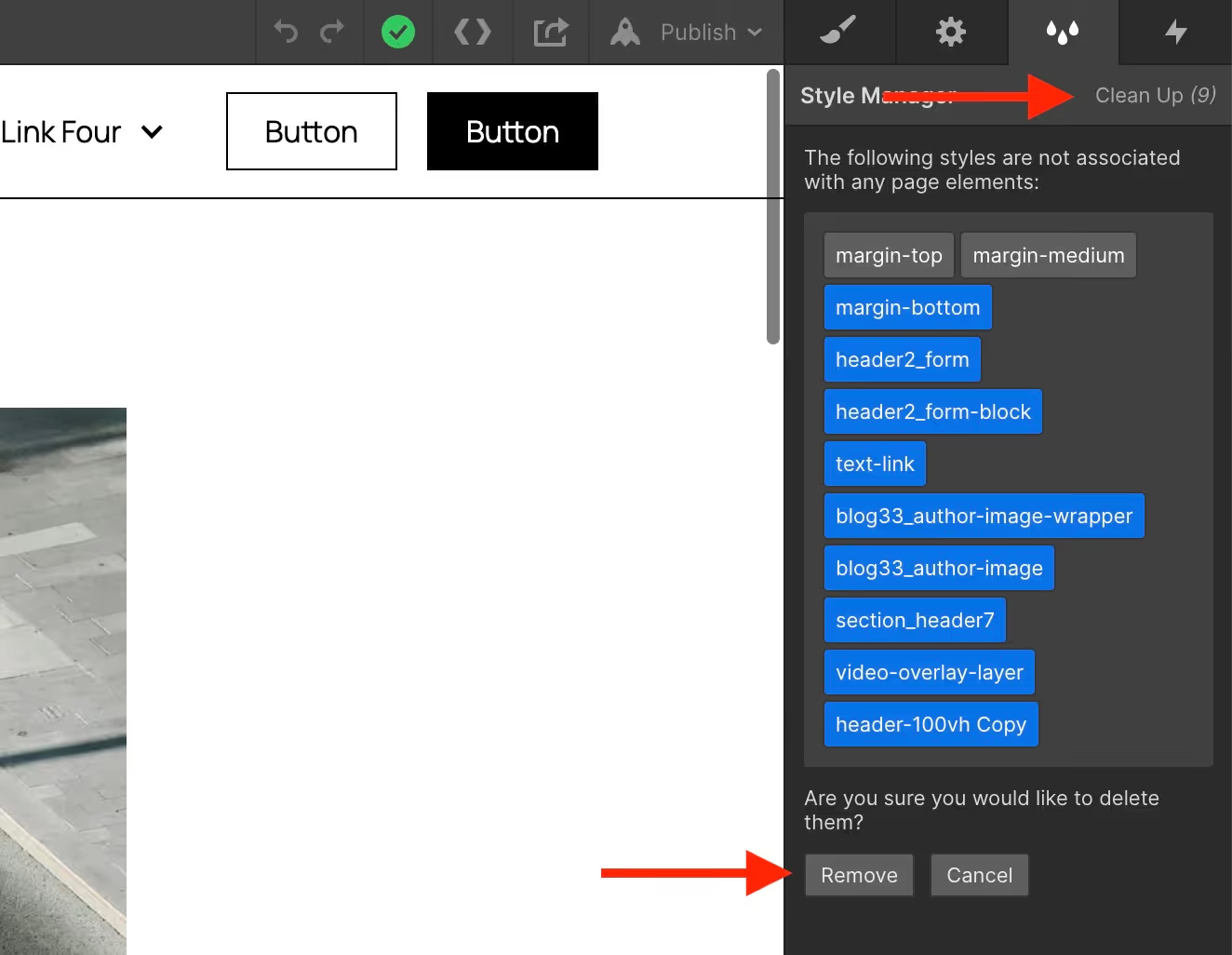
Always remove unused interactions and CSS styles. This speeds up the loading of your Webflow page. Thankfully, Webflow makes it easy for us to find and clean up too much code. To do this, click in the area Interactions Just click on 'Clean Up. ' All class names that are not in use are then deleted.
Tip 11: Host your font yourself and don't load it via Google Fonts
Integrate Google Fonts into your Webflow project in a GDPR-compliant manner. To do this, download the font family, integrate it into your project as a custom font and use the self-uploaded font in Webflow Designer. This also avoids additional Google scripts that would otherwise have to be integrated.
Tip 12: Avoid Lottie files whenever possible
Large Lottie files can drastically lower your score. So try to make a good estimate of how important they are for a website project.
Tip 13: Use CSS animations whenever possible
As soon as all possible types of interactions are created in Webflow (scroll animations, page load animations, click animations, etc.), additional JavaScript code is generated. For simple hover animations, however, you can often achieve the goal with CSS alone.
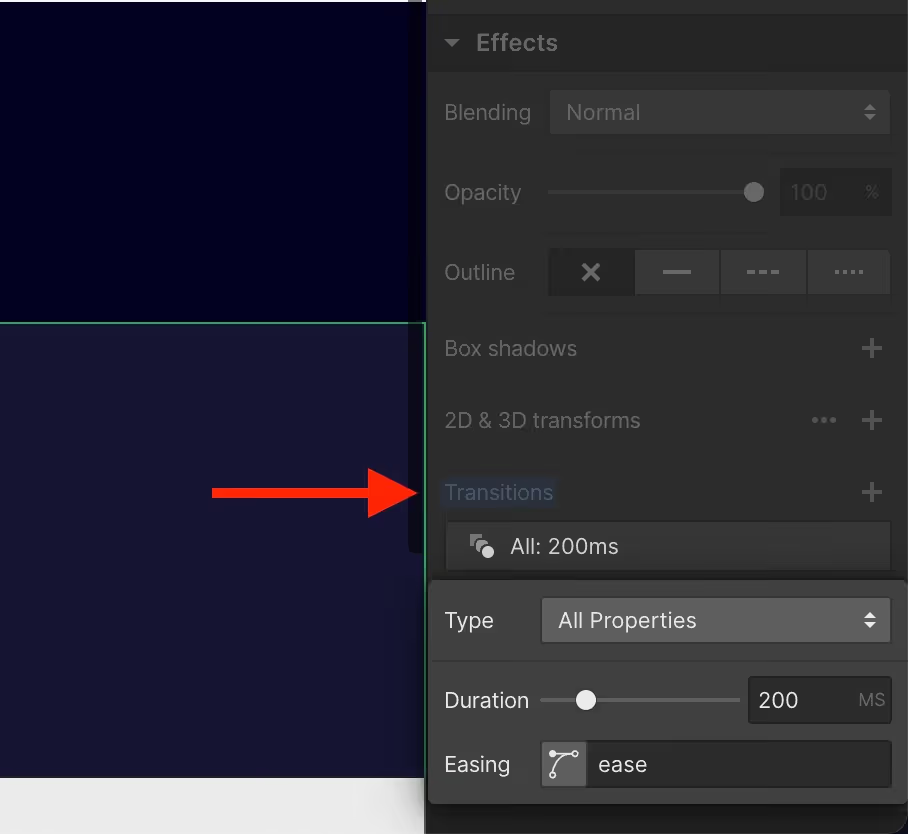
For those who are familiar with custom code, jQuery can also be used to add an additional class to an element when clicked, hover, etc., which changes the styling of the entire element. For that I can the jQuery Builder by Timothy Ricks recommend.



%2520unno%25CC%2588tig-blog.avif)