How Claude Automatically Manages My Webflow CMS (Prompt + Workflow)

Connect Webflow with Claude and manage your CMS almost on command — that's exactly what's changing how content workflows in Webflow operate.
In this video, I show you how I connect Webflow, Claude, and Notion to manage blog posts, categories, translations, and CMS content much more efficiently. Instead of rigid automations through Make, AI can think flexibly, recognize content, assign fields correctly, and even transfer content cleanly into Webflow CMS across languages.
You'll see how my setup is built, how the prompt works, and which tasks Claude already handles reliably — from blog post creation to multilingual content. I also talk openly about current limitations, like the thumbnail upload, and show you why this workflow already saves an enormous amount of manual work today.
If you use Webflow for content, CMS, blog systems, or internal processes, this gives you a very concrete look at what AI automation can look like in practice.
Feel free to write your questions in the comments. If you want to see more about Webflow, automations, and smart content workflows, subscribe to the channel.
Connecting Webflow with Claude: How to Automate Your CMS with AI
Webflow has introduced a new capability that is extremely exciting for many web designers: you can connect an AI like Claude directly to your Webflow account. This means you no longer have to work with your project manually — instead, you can work with your CMS through a chat interface, create content, adjust structures, and automate certain processes in a much more intelligent way.
Especially when you regularly maintain blog posts, content updates, or multilingual content, this can take an enormous amount of work off your plate. Because instead of rigid automations, your workflow suddenly gets a layer that understands content, recognizes connections, and responds more flexibly.
Why Classic Automations Often Hit Their Limits
In many content workflows, everything starts out manually. Entering titles, uploading images, filling in fields, selecting categories, creating posts in multiple languages. Over time, this quickly becomes recurring busywork.
The next logical step is often an automation with tools like Make. That works well for fixed rules. If a specific field in Notion is filled in, an automation can pass those values to Webflow and create a CMS item.
The problem is rigidity. Such automations do exactly what you defined beforehand. As soon as content becomes more complex — such as different heading structures, multilingual texts, or intelligent category assignments — the setup quickly becomes complicated and inflexible.
This is exactly where the combination of Webflow and Claude AI becomes interesting.
What Claude Does Differently in Webflow
The big advantage of an AI is that it doesn't just move data — it can interpret content. In my case, for example, the goal is to automatically create YouTube videos as blog posts in the Webflow CMS.
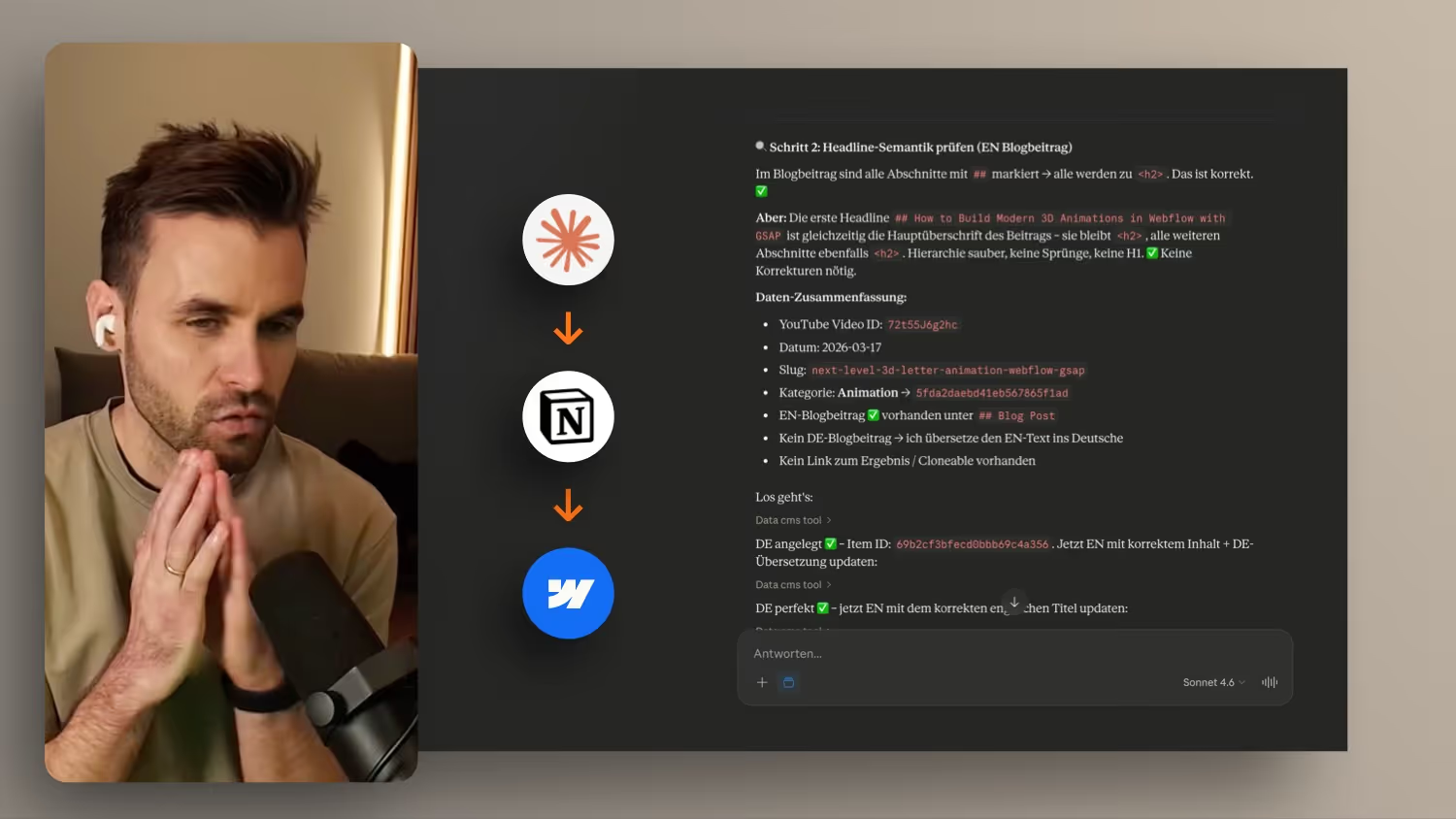
The content for that is already structured in Notion. That's where I maintain my content calendar, titles, descriptions, links, thumbnails, and other fields. Claude can access this data through the connector, find the right entry, and understand which content goes where.
In concrete terms: I give the AI only the title of a post in the chat, and it searches for the matching entry in Notion, reads out the relevant fields, and transfers them to the correct Webflow CMS collection.
What's exciting is that Claude can additionally make decisions that would be significantly more complex in a classic automation tool.
Intelligent Heading Structure
A good example is the structure of a blog post. If imported content has a heading marked as H2, but the Webflow setup already has an H1 for the title, Claude can meaningfully adjust this level and turn the H2 into an H3.
That sounds minor, but it saves exactly the kind of manual follow-up work that constantly comes up in content processes.
Automatically Assigning Categories
Another advantage is categorization. An AI can assess fairly well from the title and content which category fits a post. In my setup, Claude references the existing categories and their assignments and selects the appropriate option.
This is especially useful because such assignments often become unnecessarily complex in classic no-code workflows.
Handling Multilingual Content Cleanly
If you work bilingually, it gets even more interesting quickly. In my case, a post may exist in English, but in the Webflow CMS it needs to be created cleanly in German first, and then also prepared for the English version.
Claude can follow this sequence, translate texts, and maintain the correct order. This creates a significantly cleaner workflow than if you had to duplicate and maintain each language version separately.
How to Connect Claude with Webflow
The technical foundation for this are the connectors in Claude. There you can connect Webflow as a data source. You can also connect Notion, so Claude can read content from your content calendar and combine it directly with your Webflow project.
Important: you control the permissions. Claude doesn't automatically get unlimited access — it asks for confirmation before reading or writing content for certain actions. In Webflow itself, you can also define which pages or areas may be accessed.
This makes sense because it lets you stay in control while still working very efficiently.
Why the Prompt Is the Real Lever
The connector alone isn't enough. What matters is the prompt — the instruction that tells Claude how your workflow works.
In my setup, the prompt describes, among other things:
- how Claude finds the right Notion calendar
- which fields are relevant
- how content in the blog post is recognized
- which category assignments are possible
- that posts are only created as drafts
- how to handle language versions
- and how a YouTube URL is converted into the required video ID
This turns Claude into a real content assistant that doesn't just execute individual tasks, but understands your entire process.
What the Workflow Looks Like in Practice
In everyday use, the process is surprisingly simple. I essentially just give Claude the title of a post. From there, the AI starts the entire sequence in the background:
- It searches for the matching entry in Notion.
- It reads out the relevant content.
- It recognizes the blog text and its structure.
- It adjusts headings where needed.
- It translates content for the German default version.
- It creates the post in Webflow as a draft.
- It assigns the appropriate category.
- It transfers the content into the language versions.
The big advantage is that I don't have to manually accompany every intermediate step. I check the result in the CMS, add any missing assets if needed, and can then publish directly.
Where the Current Limits Still Are
As powerful as this already is, it's not perfect yet. In my case, for example, there are currently still issues with the thumbnail upload. The image exists in Notion and theoretically a URL is available, but the transfer into that field doesn't work reliably yet.
So that step remains manual for now. Claude does at least give me a note that I still need to add the thumbnail myself.
Why This Is Already Worth It for Web Designers
For web designers, this topic isn't only relevant if you maintain content for yourself. It's also relevant for client projects, CMS-heavy websites, and internal processes.
As soon as you regularly structure, migrate, or manage content in multiple languages, this kind of AI connection can save a significant amount of time. Especially for tasks that are always similar but never quite identical, AI has a clear advantage over classic rule-based automations.
This opens up new possibilities, such as:
- automated blog workflows
- multilingual content systems
- smart CMS migrations
- intelligent field assignments
- or converting existing content into new field types
This is especially powerful for existing projects as well. If you want to move testimonials from a plain text field into a rich text field, for example, Claude can significantly simplify such migration tasks.
Webflow and Claude Are Already Extremely Powerful Together
The combination of Webflow, Claude, and Notion shows quite clearly where modern CMS workflows are heading. Away from purely rigid automations, toward systems that understand content and map processes more flexibly.
Of course, this doesn't replace every manual check. But it takes exactly those tasks off your plate that are otherwise repetitive, error-prone, and time-intensive.
If you work with Webflow and regularly maintain content, it's definitely worth experimenting with this setup. Even small automations can save you an enormous amount of effort here.