Webflow CMS Rich Text Bullet List with SVG Icons
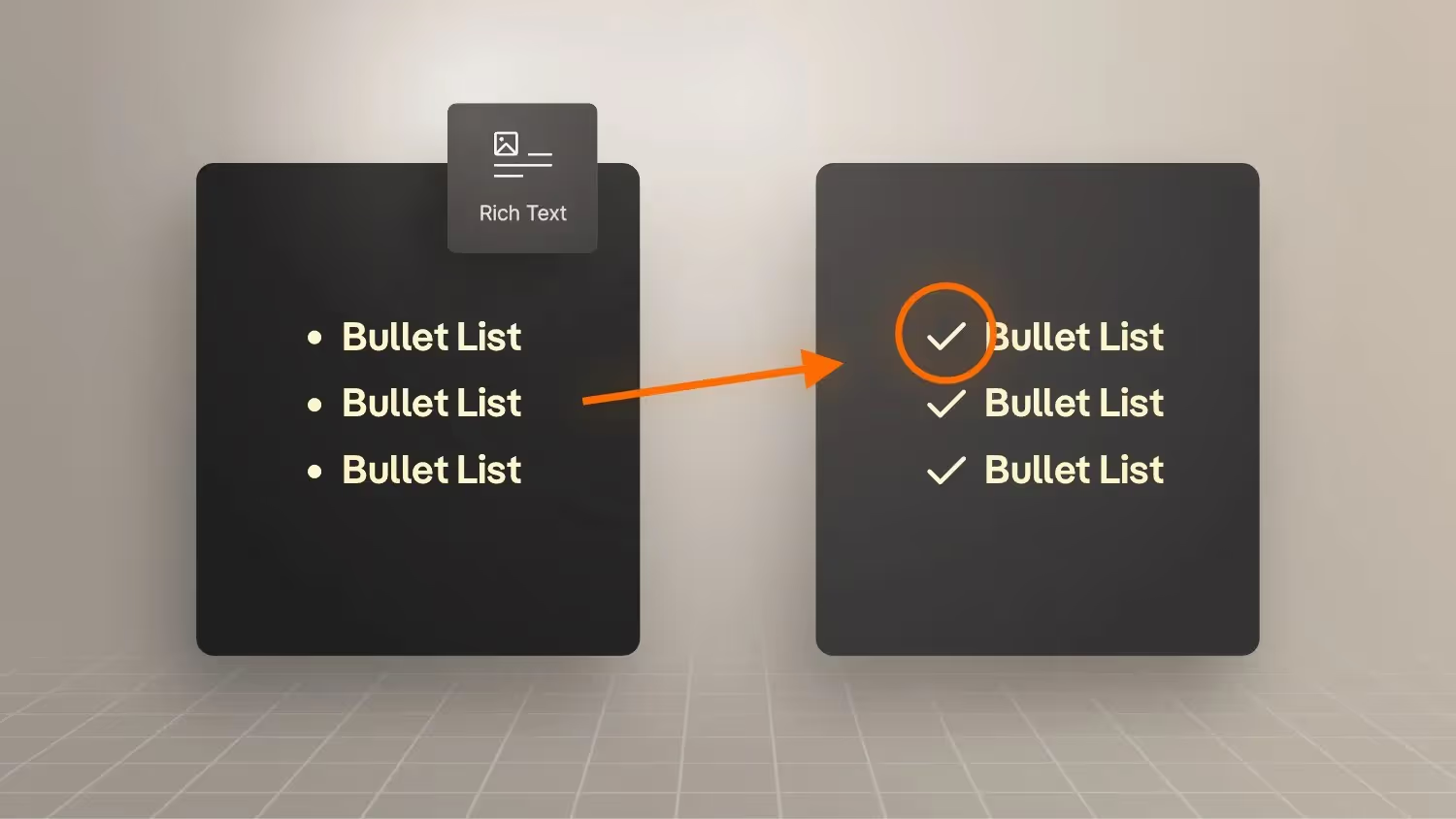

How to integrate custom icons into Webflow rich text lists
Would you like to replace the standard bullet points in your Webflow projects with individual icons, such as a check icon? In this tutorial, I'll show you how to do just that by using a rich text element and adding a bit of CSS code. This method is not only more flexible, but also better for accessibility and saves CMS fields.
Why use rich text lists with custom icons?
In many cases, we add features or content as individual components to our Webflow projects. However, this quickly means that we need many CMS fields and reach the limits of Webflow. It is also inflexible when the number of features varies. With a rich text list, you can add as many entries as you want without the need for additional fields.
Step 1: Set up a rich text field in the CMS
- Open your CMS and select the appropriate collection (e.g. “Products”).
- Add a new field and choose Rich text as a field type.
- Name the field, such as “checklist.”
- Save the changes and place the field at the desired location in the collection.
Step 2: Add content to the rich text list
- Open an entry in your CMS collection and scroll to the new rich text field.
- Create an unordered list (Bullet List) within the field.
- Add your list itemsby entering them manually or copying them from a template.
- Save the entry.
Step 3: Link a rich text element in the designer
- Switch to designer And add a Rich Text Element enter at the desired location.
- Link the rich text element with the corresponding CMS field under Settings.
- Notethat you can no longer select the list items individually, as they come from the CMS.
Step 4: Create your own class for the rich text element
- Give the rich text element a new specific class, e.g.
checklist rich text. - Avoidto use your general rich text class to prevent conflicts with other styles.
Step 5: Style list items within the class
- Click on a list item within the rich text element.
- Create a nested classby you “All Unordered Lists” within
.checklist-rich-textSelect. - Set text formatting upon “Inherit” or 1em so that the font size and color are taken from the parent element.
Step 6: Inherit font size and color
- Enclose the rich text element with a Div Block.
- Give the div block your text class, e.g.
copy-smallorHeading-4to define the size of the list items. - Checkthat the list items inherit the font size and color from the div block.
Step 7: Replace bullet points with icons
Now comes the exciting part: We're replacing the standard bullet points with a user-defined icon.
Add CSS code
- Add an embed element directly below the rich text element.
- Copy the CSS code from the Trick box.
- Replace the placeholder through the SVG code of your desired icon.
Use your own SVG icon
- Create or select an SVG icon off, such as a check icon.
- Copy the SVG code and compress Use an SVG compressor if necessary.
- Add the compressed SVG code into the CSS code, as shown in the video.
Step 8: Make adjustments
- Adjust the CSS values per
left,Top,WidthandHeightto position the icon correctly. - Check the presentation, especially if you use different font sizes or types.
Step 9: Use global CSS code
- Move the CSS code from the embed element to the global custom code area of your project (e.g. in the navigation).
- Make surethat the styles are available on all pages that the class
.checklist-rich-textuse.
conclusion
With this method, you can flexibly and efficiently use individual icons in your rich text lists. You save CMS fields, improve accessibility and can centrally control styling.
Would you like to receive the full CSS code and other exclusive tips?
Then look at my Webflow trick box Go to Formburg! There I share special code, instructions, and insider knowledge about Webflow to help you take your projects to the next level.




-blog.jpg)