Webflow CMS: Exclude Content on Specific Collection Pages (2 Methods)

I'll show you how to effectively exclude certain sections on your Webflow CMS collection page in such a way that they are not rendered in code and cannot be captured by search engines and screen readers. This is usually solved using the Conditional Visibility function. Unfortunately, this only hides an element and still writes it in the source code. Discover a clever workaround to use sections as components and individually control their visibility via the CMS.
Quick Tip: Webflow “Conditional Visibility” that doesn't render in code
In this video, I'll show you how to exclude certain sections on your CMS collection page in Webflow. This is not only about the fact that they are not rendered in the code, but also that they should not be recorded by search engines and screen readers. We'll look at the issues you can run into with Webflow and how you can work around them.
You have probably often had the situation that you have areas on a CMS collection page that should not be displayed on certain CMS pages. Here, for example, I have a color comparison on my page, which should be visible on most pages. But there is a page on which the color comparison should be excluded.
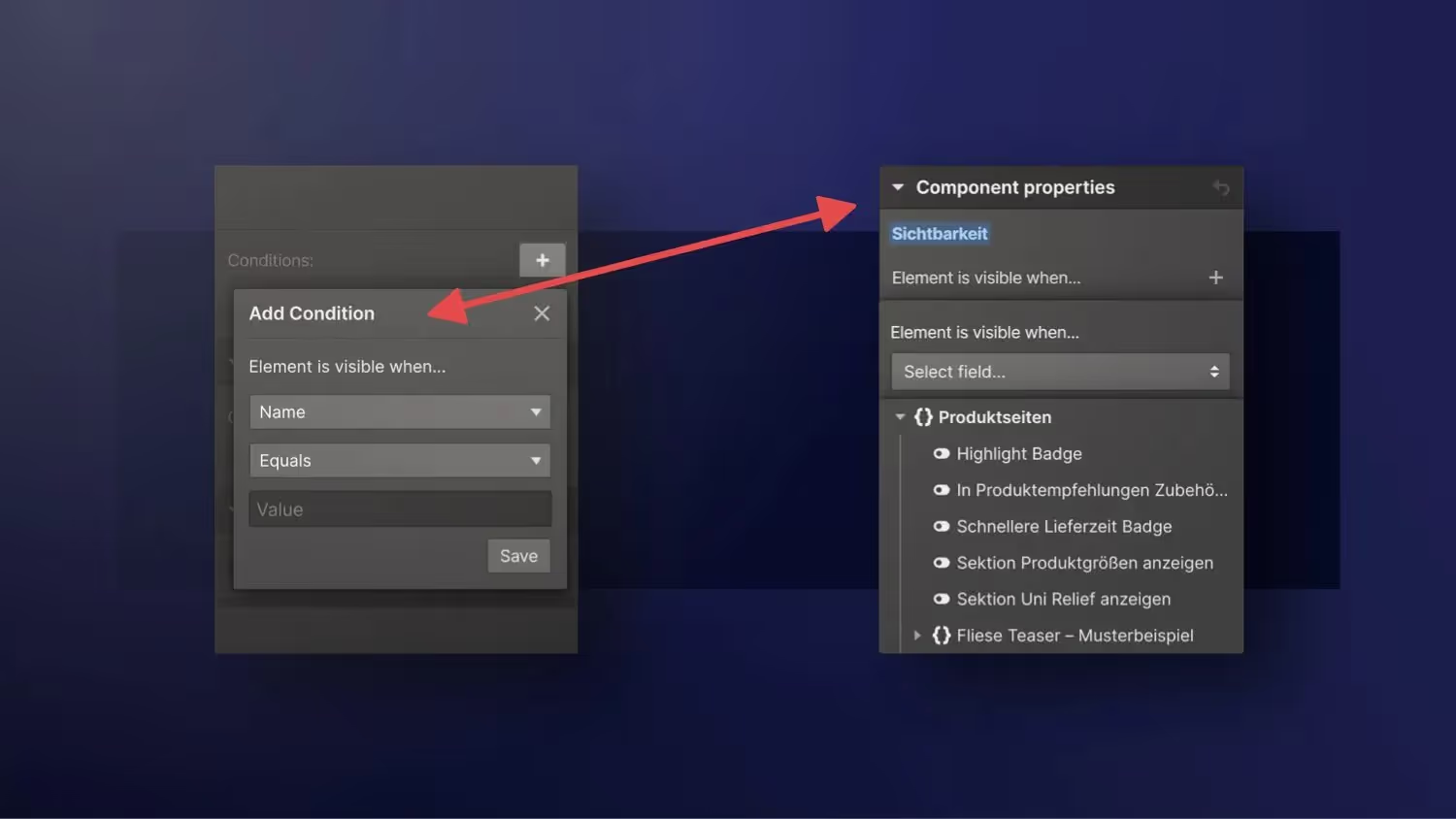
Now let's take a look at how we can implement that in Webflow. I have a section called “Subproducts” that contains the color comparison. I have set a conditional visibility in the settings (Conditional Visibility). Conditional visibility is applied when an item from the collection belongs to a specific category. If this is the case, it is hidden on the page. The problem with this is that this is still being loaded in the source code. Webflow only places this section on the CSS command “display:none” This has an impact on performance, especially if we have a lot of products. Conditional visibility is currently one of the main ways to implement this.
However, I discovered another option by chance. I've converted a section to a component. Within the component, we can edit visibility settings. We can create a new property called visibility. This gives us control over the visibility of the component and where it should be hidden. So that the component is only invisible on a collection page, we need to create a link to the CMS collection. To do this, we'll add a new field to the CMS collection using a toggle/switch. Now we can set the component to only be visible when the button is activated.
This workaround allows us to use the component without rendering it in code. Unfortunately, we can't build a component right now if we have CMS content in it. That is something that is expected to be fixed next year, 2024. Until then, however, this is a good solution.


-blog.avif)