Tutorial: Vimeo Background Video with Play Button Function
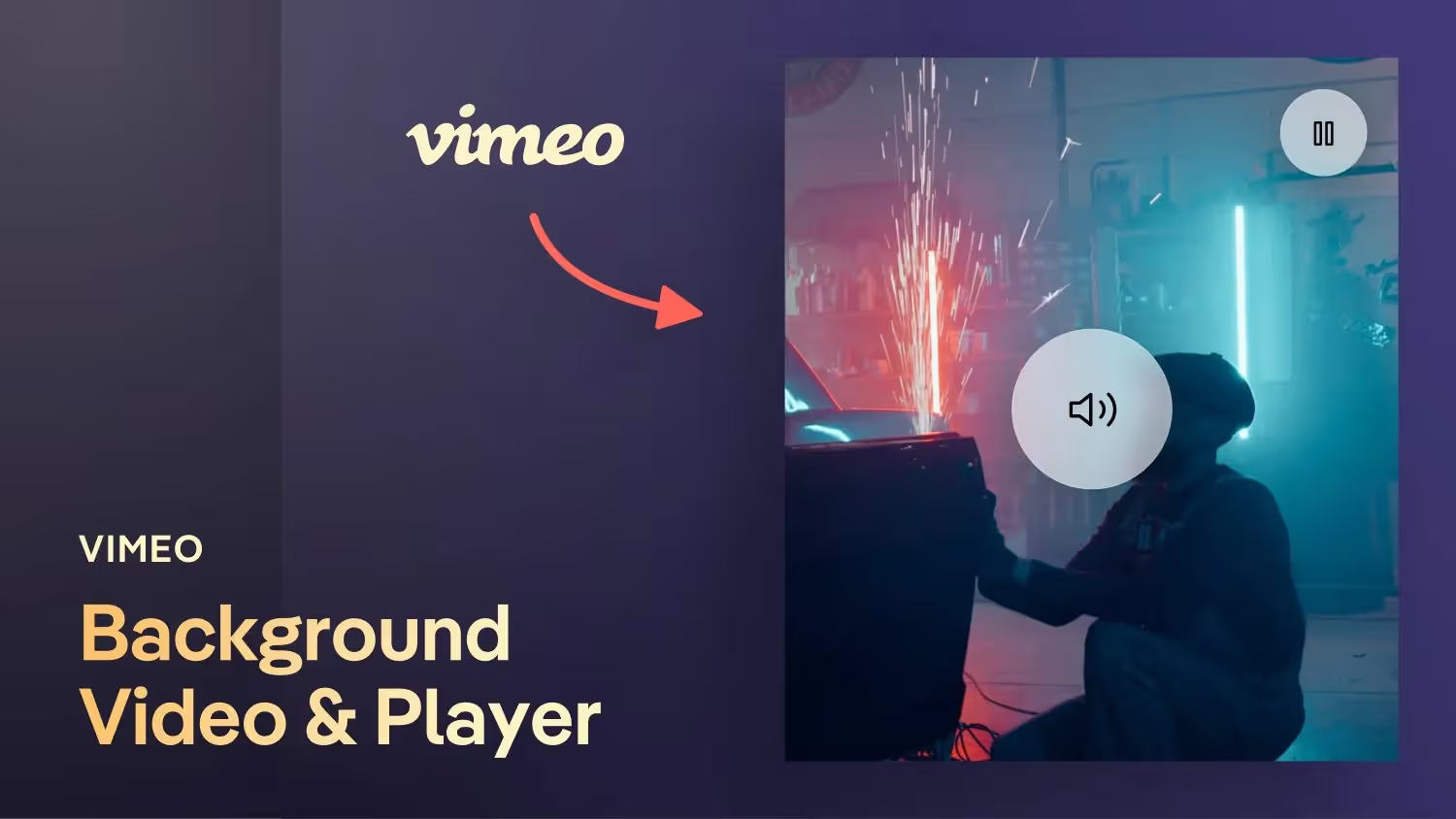

Today I'm going to give you a more advanced Webflow tutorial. My Webflow online course community wanted to build this video player, which basically runs in a loop without sound as a background video for now. If you click on an Unmute button, the video plays from the beginning and the sound is activated. You can also add a nice click animation directly to the whole thing in Webflow.
We need a bit of custom jQuery code for that. In addition, the Vimeo API must be integrated if you want to address and convert Vimeo iFrames. As always, the project is available as a free cloneable on my Webflow account.
Background video with custom player in Webflow
initiation
Welcome to a new Webflow tutorial. Today I'm going to show you an advanced feature that requires us to add our own code to integrate an automatically playing background video with its own player UI. This feature was sent to me by a participant in my online course who saw it at an agency in Switzerland. The video is hosted by Vimeo and as soon as you press “Play”, the video starts with sound and you can also mute the sound.
Step 1: Source code analysis of the reference page
In the Webflow page I found, it looks like they've included an external script for the background video. When we click on the “Play” button, the video starts from the beginning. However, there is still a minor issue with the user interface, as the “Play” button doesn't hide. In the page's source code, we see that they used the Vimeo player and the Vimeo API.
Step 2: Integrate the Vimeo player and API into Webflow
To integrate the video into Webflow, we need the Vimeo player and the API. I've looked at the source code and pulled out a few elements that we can use. We're adding the Vimeo player and API to our webflow project and adapting them accordingly. Then we copy the link to our video and paste it into the embed field. In addition, we also copy the jQuery code for the Unmute button and adapt it. This allows us to play the video and mute the sound.
Step 3: Let the video play from the start
To play the video from the start, we'll add another element and use the “Set Current Time” function to zero to reset the current playback time. In this way, every time we click on “Play”, the video starts from the beginning.
Step 4: Styling the background video
Now that we've implemented the basic feature, we can now move on to styling. We create containers and wrappers for the video and position the buttons accordingly. With the help of CSS and animations, we design the Unmute button and the Play button according to our ideas. For example, we can add a magnetic effect to make the buttons more interactive.
Step 5: Add an overlay effect
To make the video even more appealing, we could also add an overlay that darkens the background and gets lighter when you click Play. This creates an interesting visual effect that signals to the user that the video is being played again.
conclusion
In summary, with Webflow and a bit of our own code, we can create a custom background video with an individual player. By integrating the Vimeo player and the API, we can let the video play right from the start and control the sound. With the help of CSS styles and animations, we can customize the design and even add additional effects to make the video even more appealing. Have fun trying out and experimenting!

-blog.jpg)