Animate an SVG When It Scrolls Into the Viewport (Code Template)
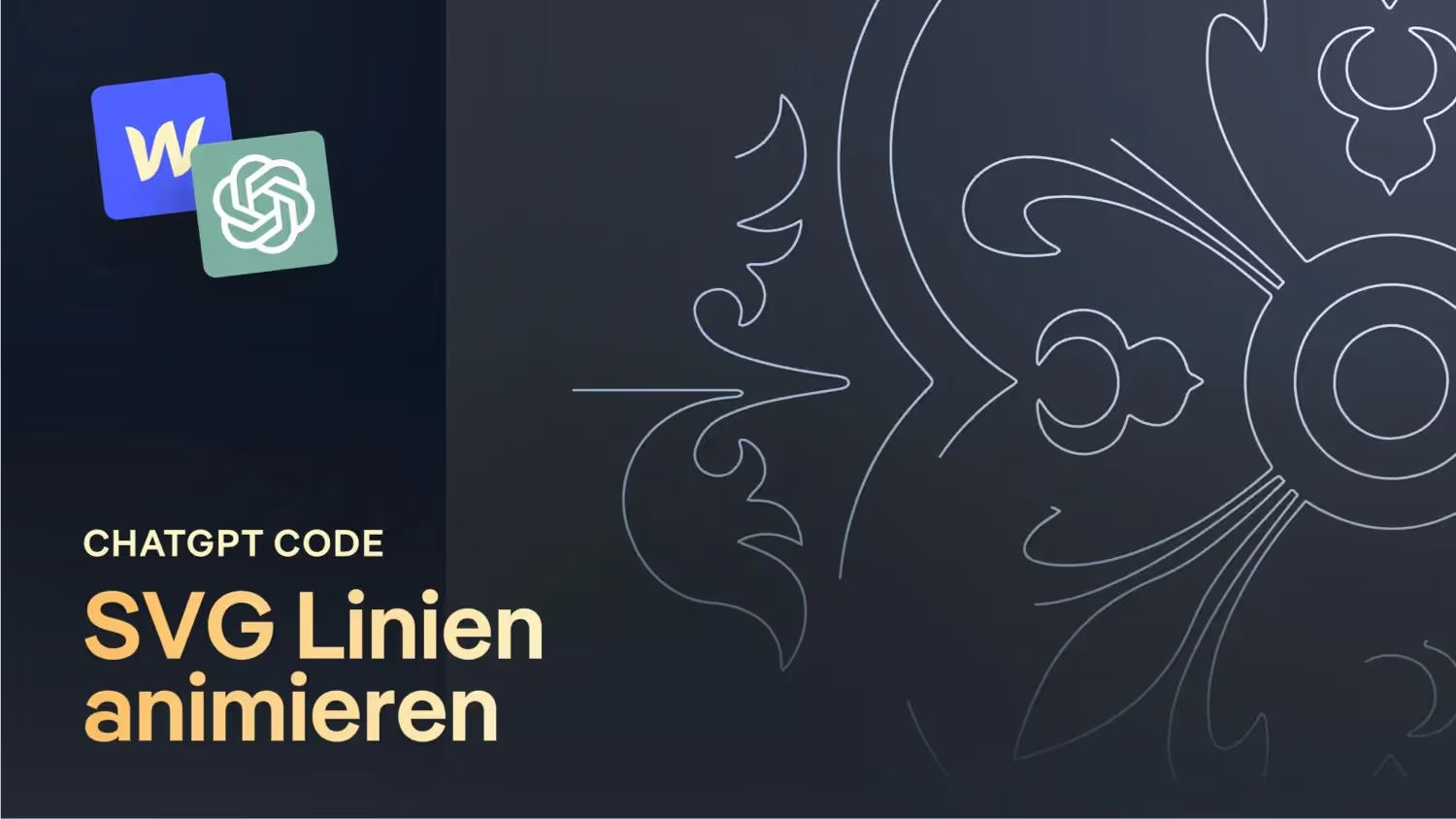

Learn how to animate SVG graphics on your website in one easy step in this web design tutorial. Improve the visual aesthetics and interactivity of your websites with scalable SVGs that look razor-sharp on all devices. I'll show you how to add movement to SVG lines, engage visitors, and communicate messages effectively. I've also prepared a solid code template for animated paths for you. With just two attributes, you can animate any SVG with line paths and adjust the timing. Particularly easy to integrate into Webflow via an embed field.
Path Commander: https://thednp.github.io/svg-path-commander/convert.html
SVG Compressor: https://jakearchibald.github.io/svgomg
SVG animation tutorial for web design: simply animate paths
As a passionate web designer, it's always exciting to discover new ways to improve the visual aesthetics and interactivity of websites. Today I'd like to share with you an exciting way to bring SVG graphics to life with fascinating animations. In this blog post, I will explain step by step how to animate SVGs and which techniques can be used.
Why are SVG animations important for web design?
SVG graphics are extremely popular in the web design world because they're scalable and look razor-sharp on all devices. But what makes them even more impressive? animations! Animations add movement to websites and attract visitors' attention. They help to convey messages and take the user experience to a new level.
The basics of SVG animation
To get started with SVG animations, you need a solid code template. In my YouTube video, I show a simple way to animate SVG paths. This method only uses 2 attributes and can be easily integrated into various projects. It's important to understand that not all SVG elements can be animated. Only paths can be animated, so you have to make sure that the parts of the SVG you want to animate consist of “paths.”
Animation with JavaScript and CSS
The actual animation is controlled using JavaScript and CSS. I'll explain in detail how to adjust the timing and duration of the animation to achieve the desired effect. I also give tips on how to use “currentColor” for color control and for adjusting the line width.
Preparing SVG code
In the video, I explain how to prepare the SVG code to prepare it for animation. I do this step by step: Copying the code, cleaning the code using a SVG compressor and adding attributes for animation.
- Path Commander: https://thednp.github.io/svg-path-commander/convert.html
- SVG compressor: https://jakearchibald.github.io/svgomg
You must apply the following 2 attributes to a DIV around the SVG:
svg=” animated”
svg-animation-time=” number in ms” (optional)
The following JavaScript code is required
<script>
  $ (document) .ready (function () {
  $ ('[svg="animated "]') .css ({
  opacity: 0,
  Transition: “Opacity 400ms ease”
  });
  $ (window) .on (“load resize scroll”, function () {
  $ ('[svg="animated "] path') .each (function () {
  var pathLength = this.getTotalLength ();
  $ (this) .attr ({
  “stroke-dasharray”: pathLength,
  “stroke-dashoffset”: pathLength
  });
  var svgAnimated = $ (this) .closest ('[svg="animated "]');
  var svgAnimatedTop = svgAnimated.offset () .top;
  var svgAnimatedHeight = svgAnimated.outerHeight ();
  var windowHeight = $ (window) .height ();
  var windowScrollTop = $ (window) .scrollTop ();
  var animationDuration = svgAnimated.attr ('svg-animation-time') || 5000;
  if (WindowScrollTop + WindowHeight > svgAnimatedTop && WindowScrollTop < svgAnimatedTop + svgAnimatedHeight) {
  $ (svgAnimated) .css (“opacity”, 1);
  $ (this) .css ({
  transition: “stroke-dashoffset" + animationDuration + “ms ease-out”,
  “stroke-dashoffset”: 0
  });
  }
  });
  });
  });
</script>
Application in various projects
SVG animations can be used in various web design projects to make them more interactive and appealing. I'll show examples of various shapes that were animated to illustrate the process. You can clone the sample project to Webflow for free and copy out elements.
Challenges and solutions
Of course, there are challenges with SVG animation, for example when certain elements in SVG cannot be animated. Here I explain how you can convert such elements into animatable formats using an online tool.
Conclusion and outlook
SVG animations are an amazing way to bring websites to life. They make it possible to communicate messages more effectively and improve the user experience. With the right tools and knowledge, any web designer can create appealing SVG animations and thus enhance their projects. I hope this blog post has inspired you to take your web design skills to the next level.


-blog.jpg)