The Webflow Editor – How Clients Edit Their Website


Manage and update content on a Webflow website — without the Webflow Designer. That works! In the Webflow Editor. It is one of the most powerful weapons Webflow has to offer. With the editor, it is possible for your customers to make changes to their Webflow website on their own without affecting the design of the website.
What makes the Webflow Editor so powerful?
If you're a website designer, you certainly know the following problem: As soon as a small (or big) change needs to be made on your customer's website, you're in demand. Sometimes it's just a picture. Sometimes about a misspelled word. Things that the customer could actually do themselves if it wasn't for the complicated program. Such adjustments and corrections cost you unnecessary time — and so does your customer.
What would it be like if your customer could easily make such changes themselves? And at the same time can you be sure that the website design is not destroyed? With Webflow, that's possible.
The visual editor allows your customers to On-page editing. This means that your customer can make changes directly on the website. He sees in real time what he is doing and what the final result looks like. The changes are not immediately visible to website visitors. They have yet to be confirmed.
“In the Webflow Editor, multiple users can make changes in parallel. If two users work on a content element in the editor at the same time, the user who is the last to make or confirm the changes prevails. Therefore, even when used at the same time, it should be agreed who will take on which tasks.”
How do you use the Webflow Editor?
Managing and changing content in the Webflow Editor is super intuitive — and therefore easy for your customers too. As soon as you move the mouse pointer over website elements that can be changed in the editor, a box is formed around the element and an edit icon is visible on the right edge of the element in question.
In the Webflow Editor, your customer can write and change texts

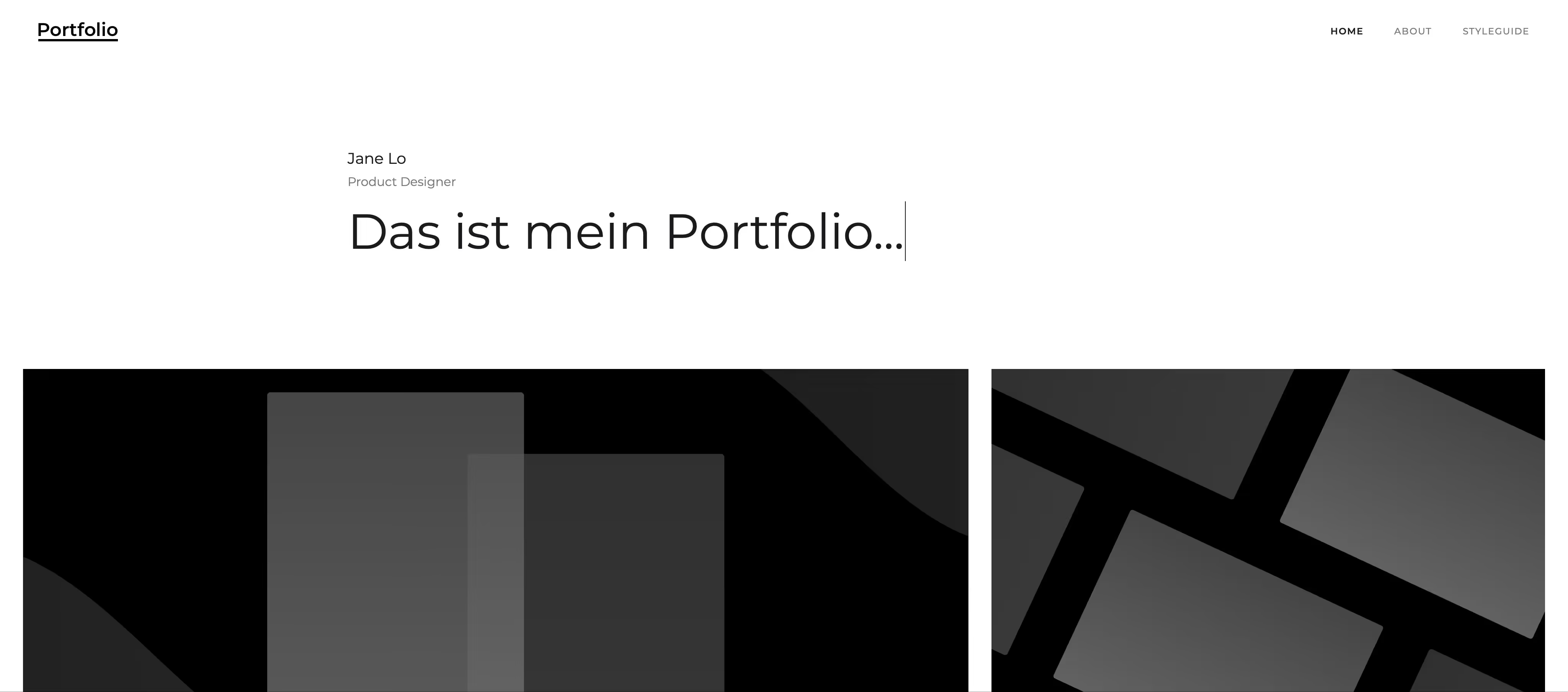
As soon as your customer moves the mouse pointer over an editable text element, a gray box with the edit icon appears around the element. When your customer clicks in the box, they can change the text. This allows your customer to add new texts, italicize or bold the text, and link to the text.
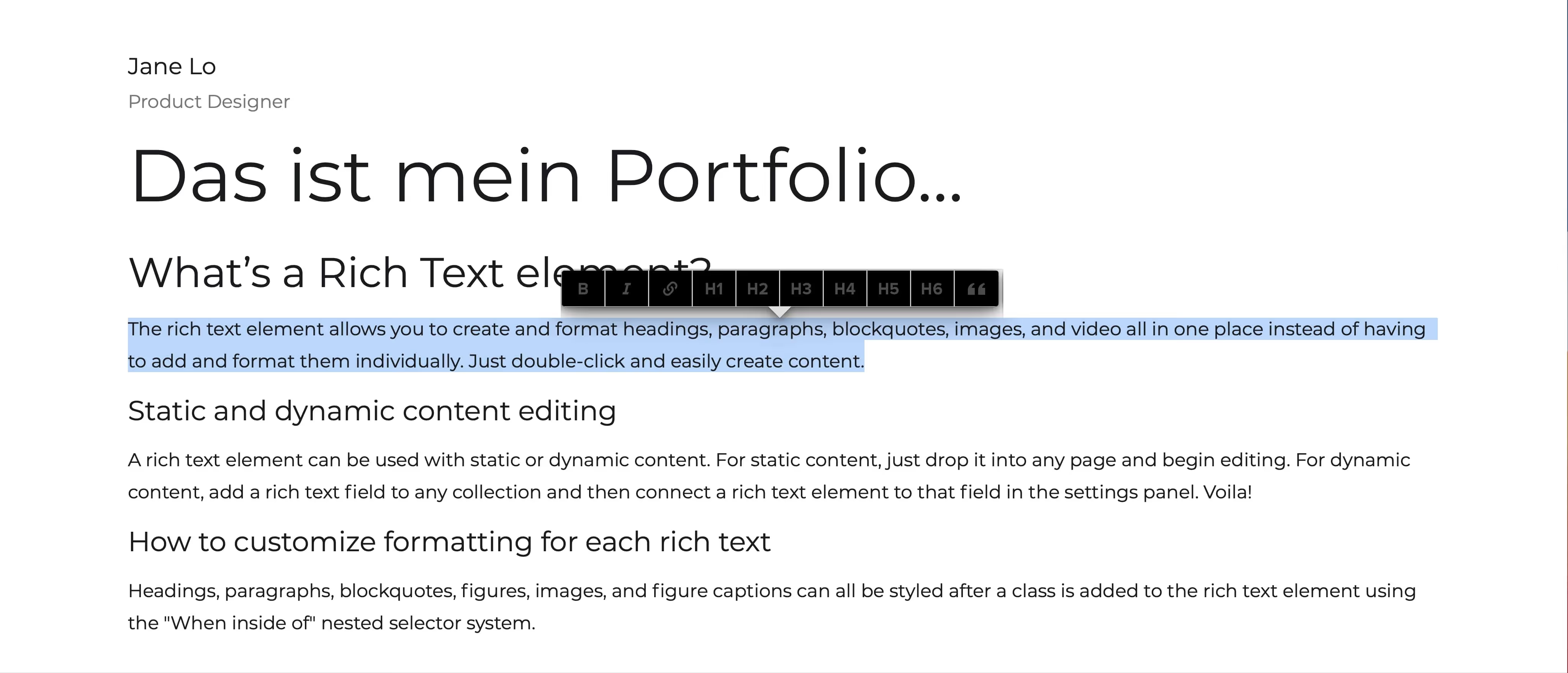
In the case of Rich Text Elements, your customer can do a lot more. This allows him to add media content, create lists, format the text, and more.
In the Webflow Editor, your customer can insert and change images
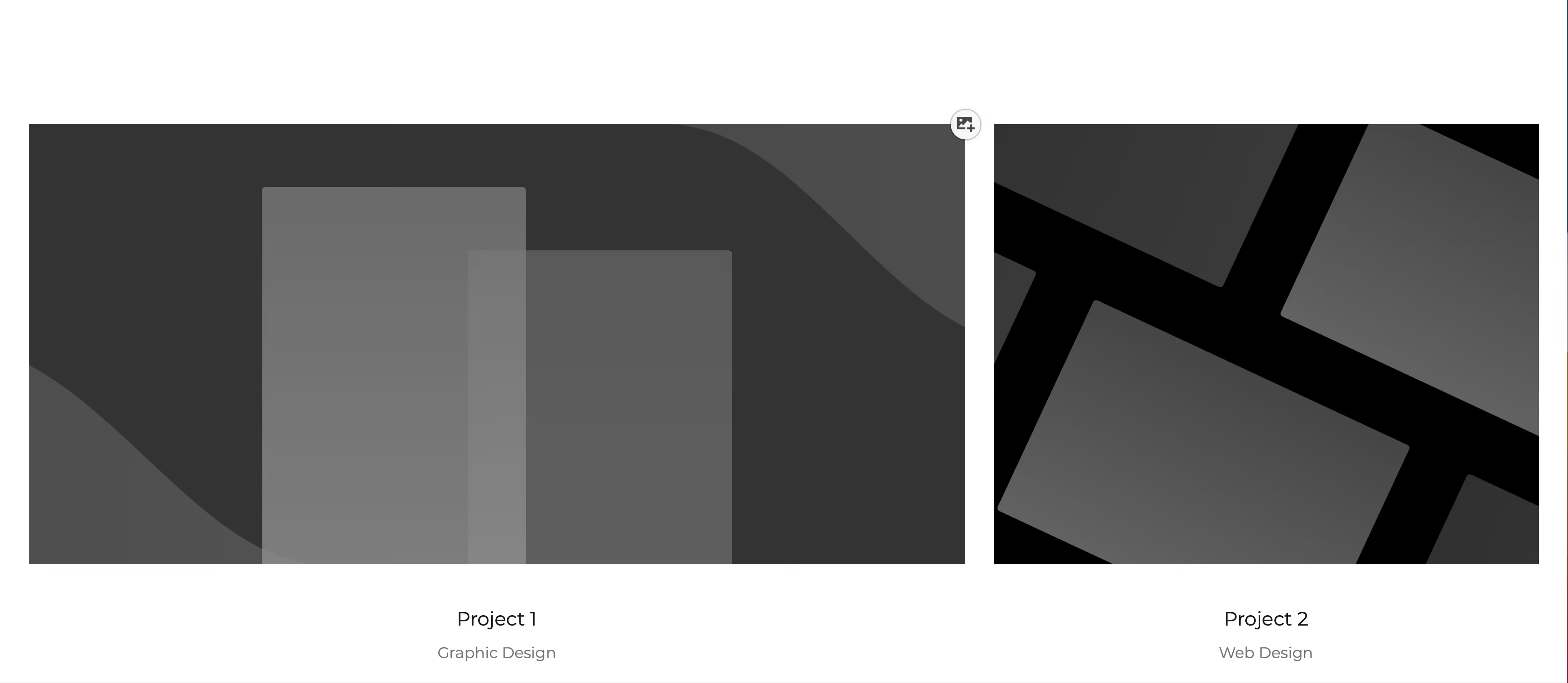
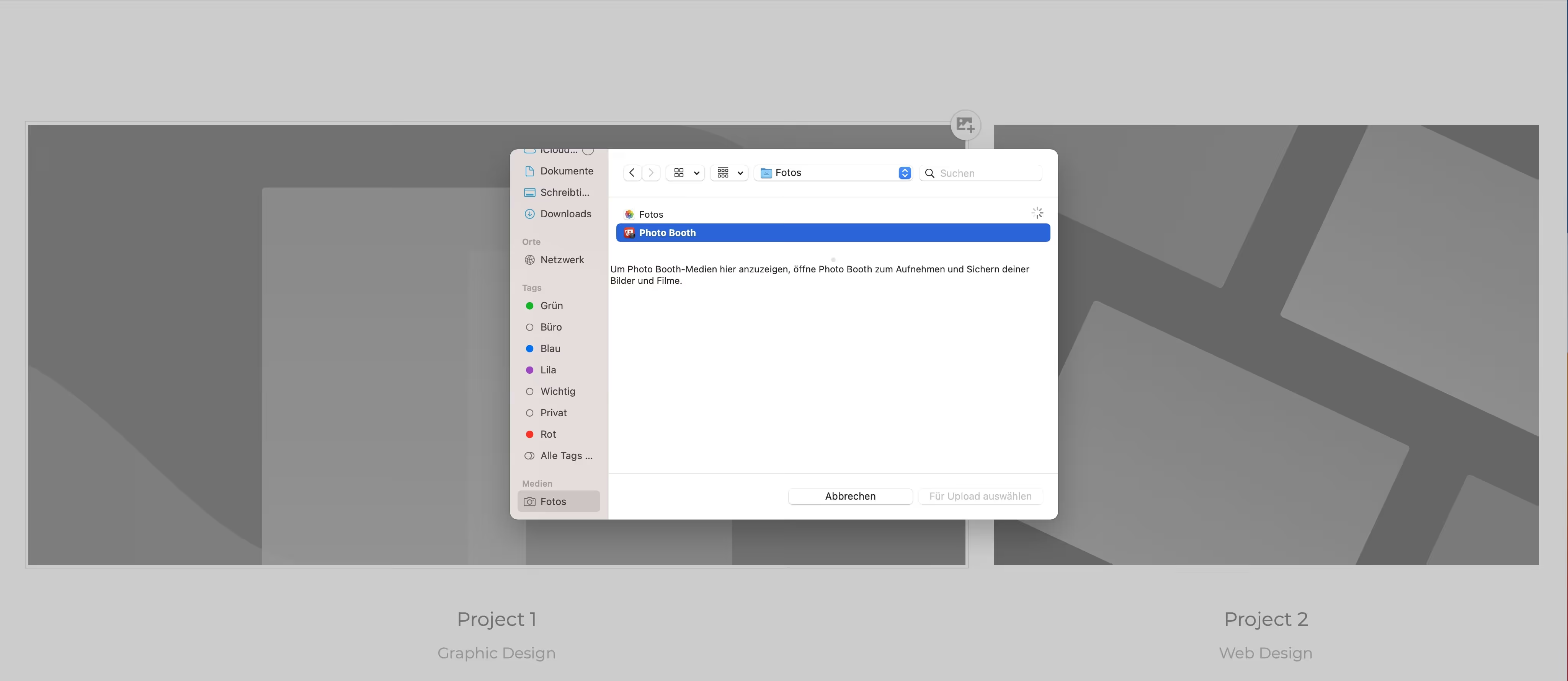
Exchanging and inserting images in the Webflow Editor works on the same principle as editing texts. To do this, the customer moves the mouse pointer over the image they want to change and clicks on it as soon as the editing icon is visible. He now has the option to upload a new image from his computer.
Particularly handy: Any visual styles that you've created for an element in the designer, such as frame color or shadow, are automatically applied to the new image.
In the Webflow Editor, your customer can change buttons and links

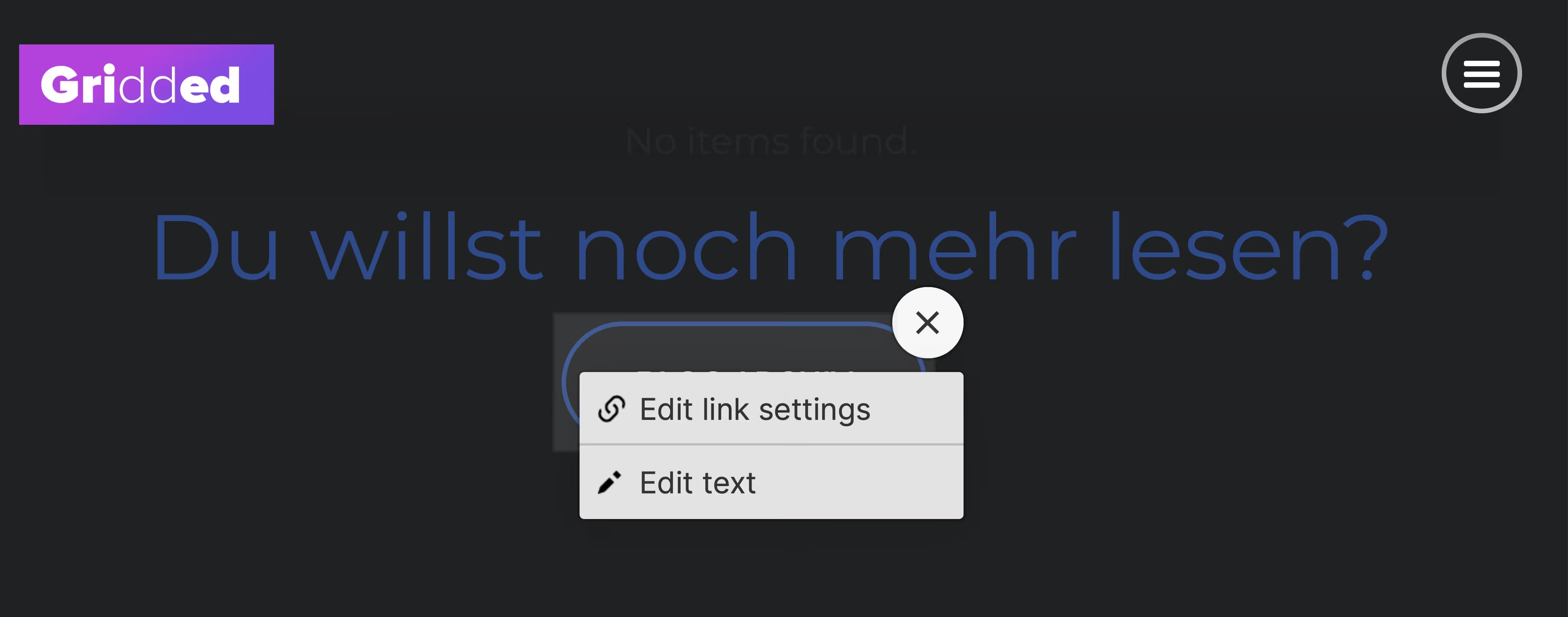
As with text and image elements, an edit icon appears on the right edge of buttons in the Webflow Editor. In this case, a cog. As soon as your customer clicks on the cogwheel, they have the choice: They can change the text in the button. Or the link that a click on the button leads to.
In the Webflow Editor, your customer can change and add CMS content

If you have built a blog - or another site with dynamic content - for your customer, it is possible for the customer to update the CMS content and add new ones. To do this, he clicks on “Collections” or “Blog Posts” at the bottom of the screen.
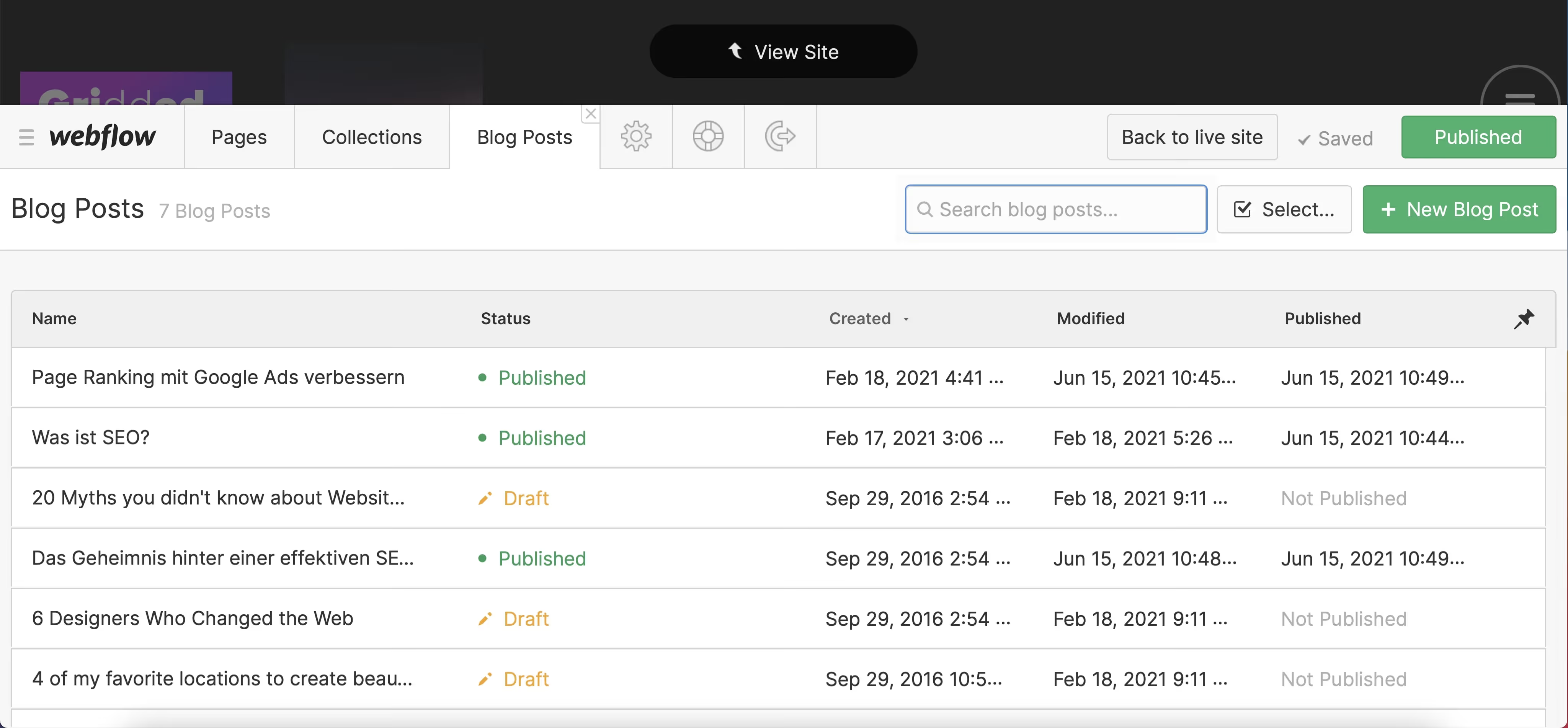
A list of all blog posts opens, which the customer can now edit as they wish. He is also able to independently design and publish a new blog post by clicking on the “New Blog Post” button.
In the Webflow Editor, your customer can change SEO settings and descriptions
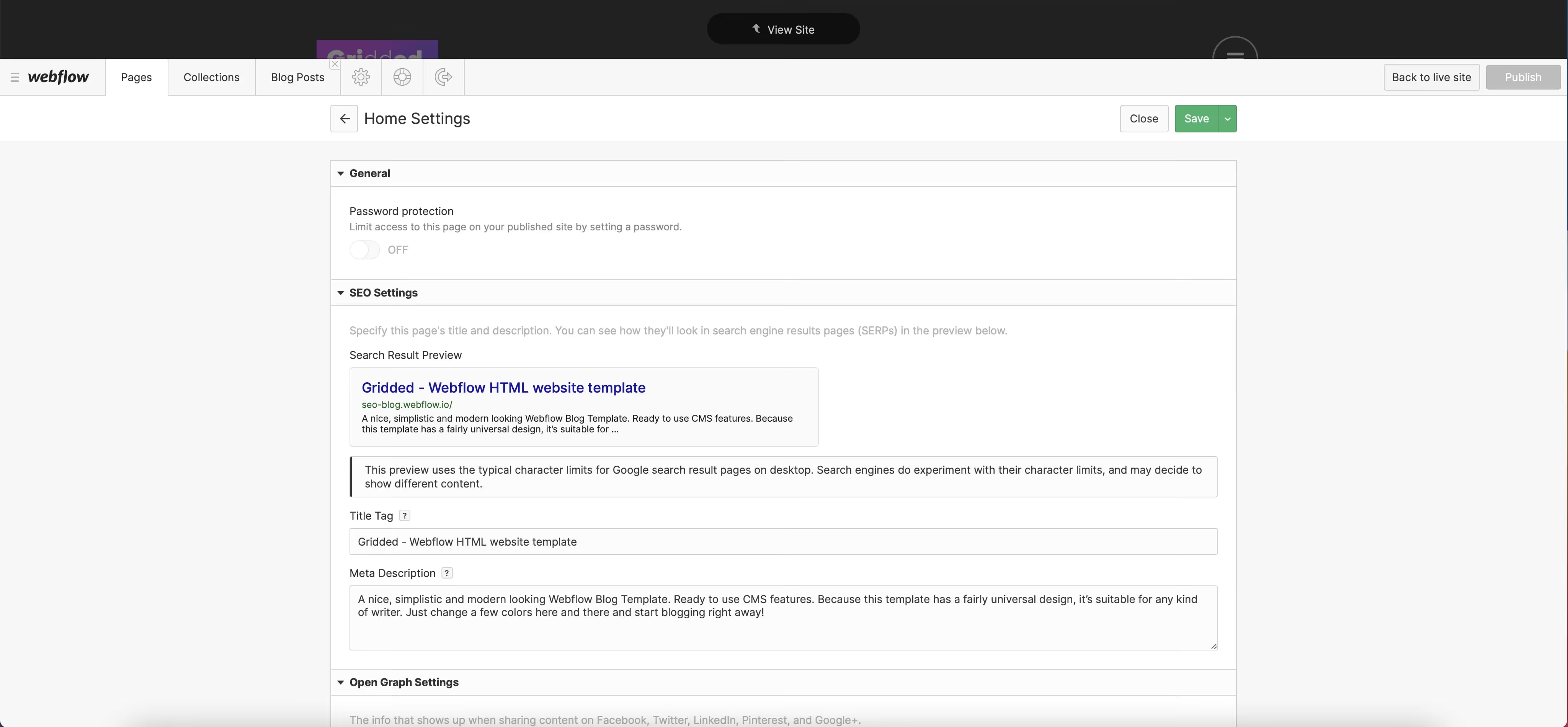
If your customer wants to create a description of the individual subpages for search engines - i.e. add the metas - he can also do that in Webflow. To do this, he opens the tab at the bottom of the screen in the editor panel Pages, select the page whose metas he would like to edit from the displayed list and click Settings.
In the Webflow Editor, your customer can view form data
If your client's project includes forms, you'll see the tab in the editor forms. Here, your customer can view basic information from the forms and download the complete form data as a CSV file.
In Webflow Editor, your customer can only change what you want
By default, your customers can edit all content on the live site with the editor. However, you can set individual elements to uneditable.
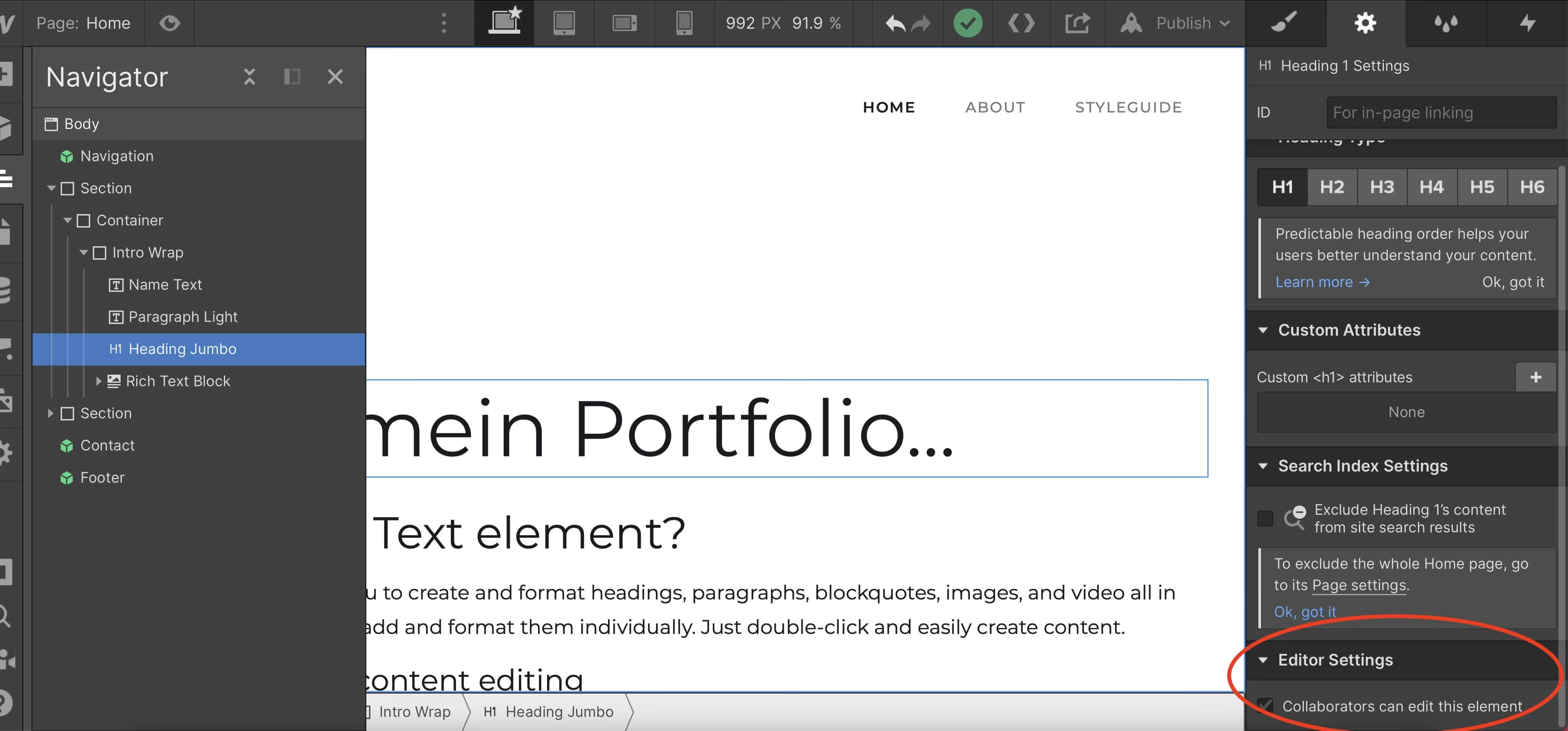
- To do this, open the project in the designer
- Select the item you don't want editable
- Go to settings
- Uncheck “Collaborators can edit this element”
What is not possible in Webflow Editor?
Your customer cannot influence everything about the design, structure and structure of the website in the Webflow Editor. To do this, he would have to log into the Webflow Designer. That is a huge advantage. This is how you ensure that the customer does not make any unintended changes to their Webflow website.
What are the drawbacks of Webflow Editor?
For the Webflow Editor to work smoothly, third-party cookies must be enabled. Hopefully the webflow will change soon though. Most browsers disable this function by default, i.e. your customer must first allow third-party cookies for their browser. You may need to explain to your customers how to do this first.
Another disadvantage of the Webflow Editor: Your customer cannot add pages/subpages for their website. This is a limitation that many customers don't like too much.
Pro tip: Video for handover
For each customer project, I recommend that you record a video before the final handover of the website, which shows how it can be edited specifically on the basis of the customer website. This helps your customer immensely and is an extra service that your customers will appreciate. Alternatively, Webflow also has a Client's Guide to the Editor.


-blog.avif)